

GAT Flow enables Google Workspace Super Admins and GAT Flow Delegated Auditors to efficiently manage Google Classrooms by removing students as needed. Whether removing individual students or groups collectively.
The deletion process can be performed collectively for all classrooms in which individual users study, or only for specific classrooms.
Create a workflow to Remove Students from Google Classrooms #
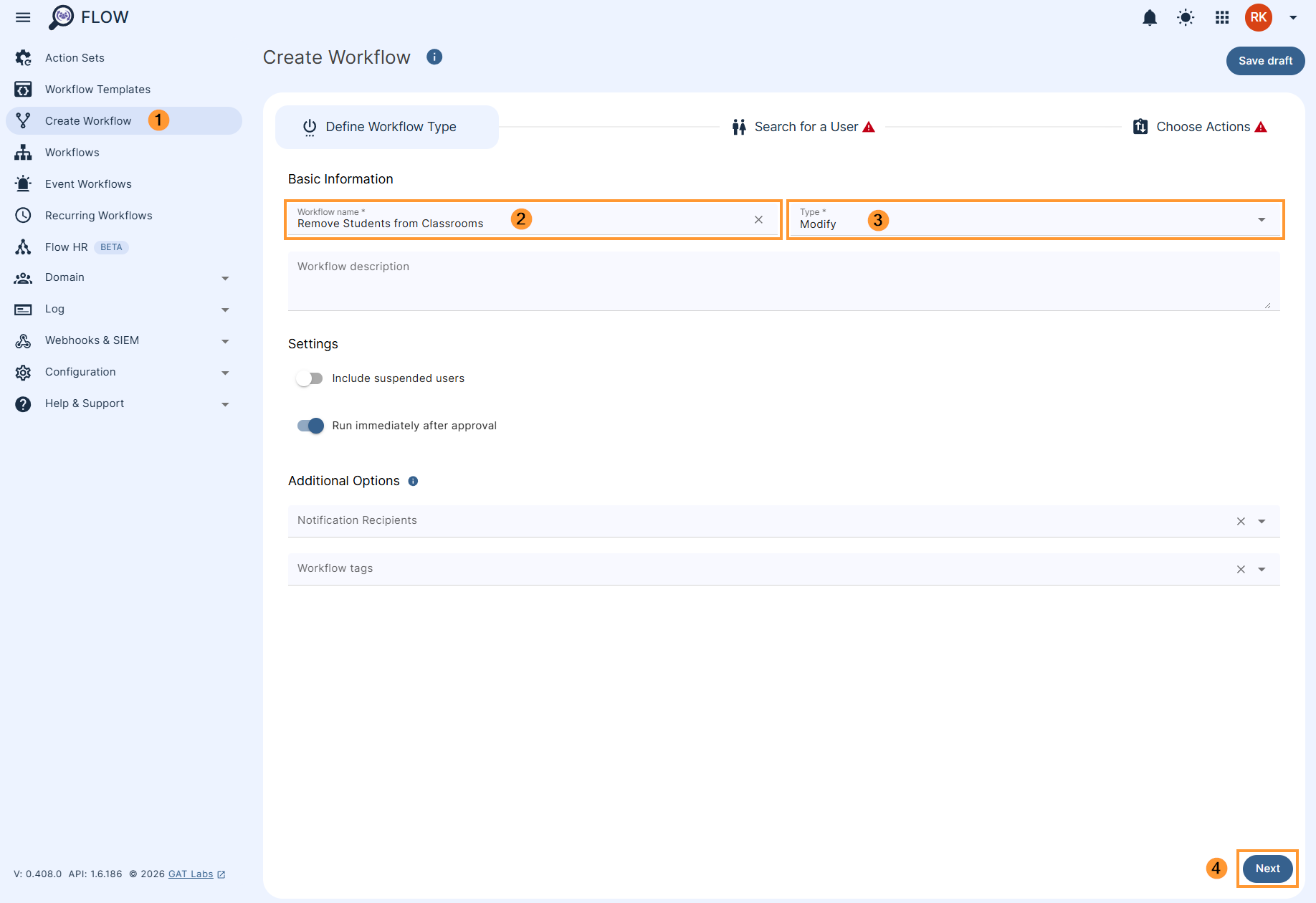
In the Workflow fill in the details for the workflow. You can set it up also as an Event workflow or Recurring workflow.
- Name – enter the name of the workflow (2)
- Description – enter a description for the workflow (optional)
- Type – select what workflow type you would like to run
- Modify – modify existing users (3)
- Include suspended users – enable or disable to allow you to select users who are currently suspended:
- If enabled – you will be able to select even users who are suspended
- If disabled – you will be able to select only users who are active
- Run immediately after approval – provides an option to schedule the workflow to run in a selected future time (optional)
Later click Next (4) to proceed.
Select users #
Select the users for whom you would like to remove as a student (1). You can select a user, group of users, org or classroom (2-3), and even use the Import users option.
After selecting the users, click on the button Next (4).
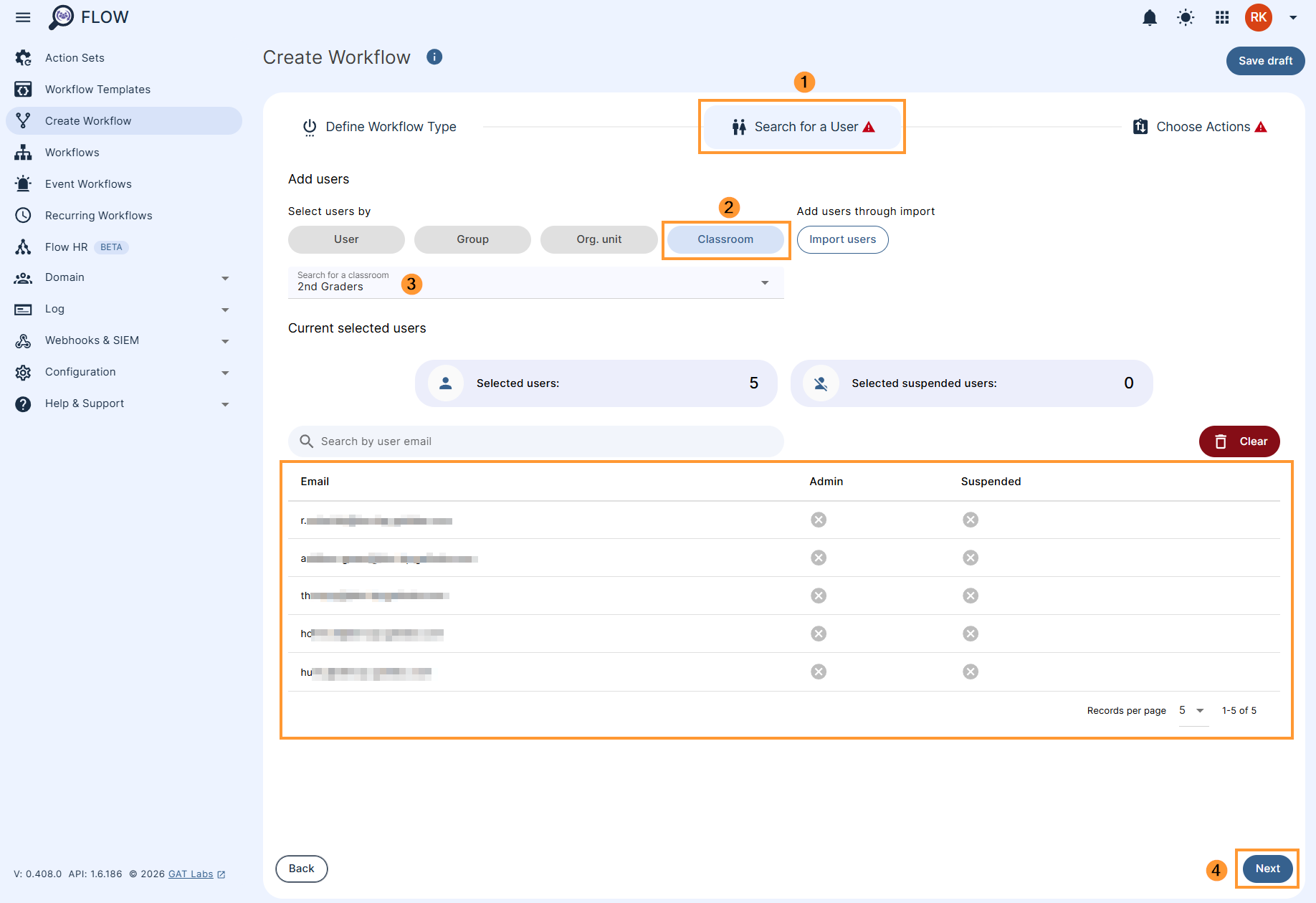
Once users are selected, click on Next (4).
Apply the action #
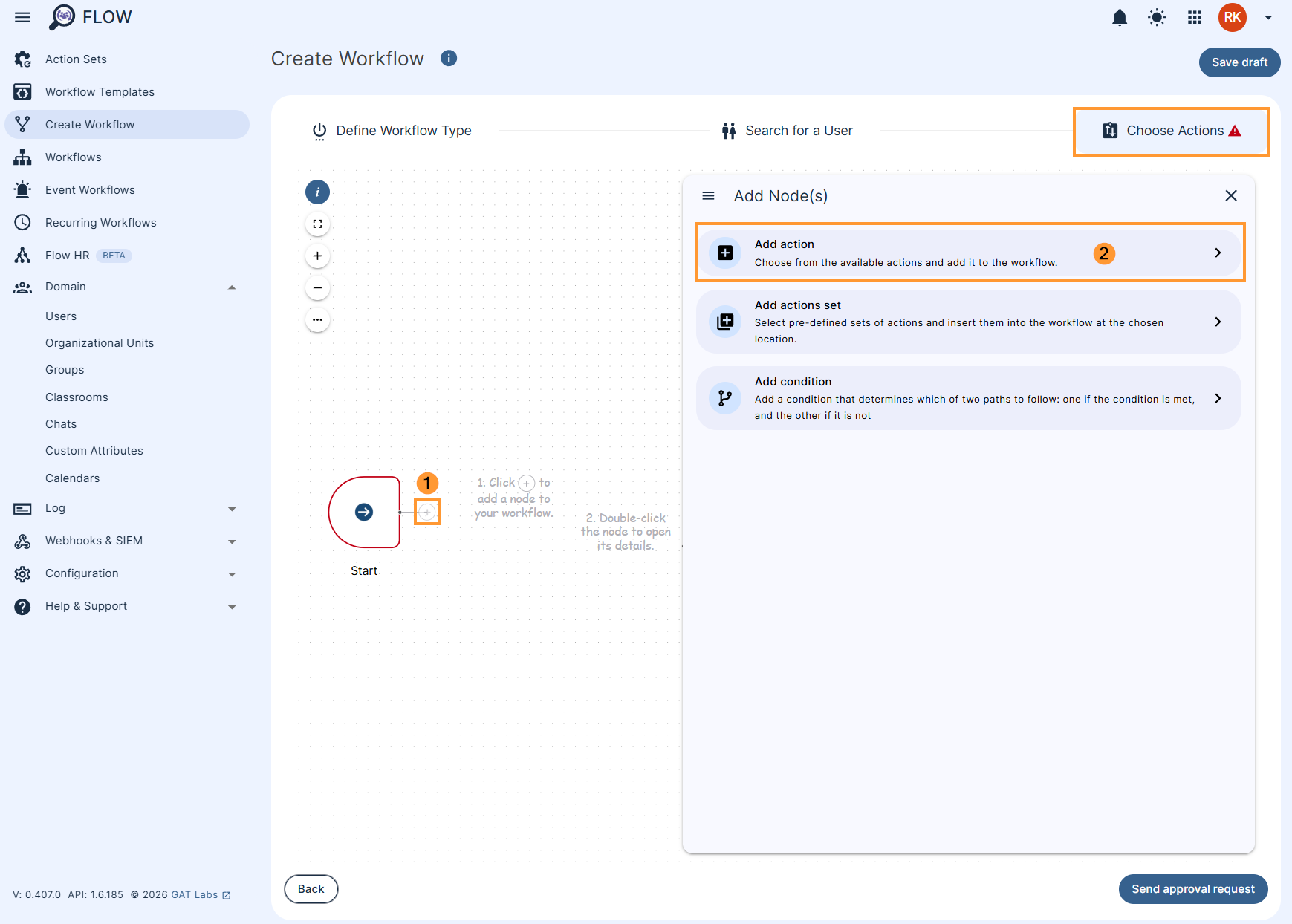
In the Choose actions click on the (+) button (1) and then click the Add action button (2)
Afterwards, search and add the action Classrooms > Remove student(s) from Classrooms (1) then double click the Remove student(s) from Classrooms action node (2).
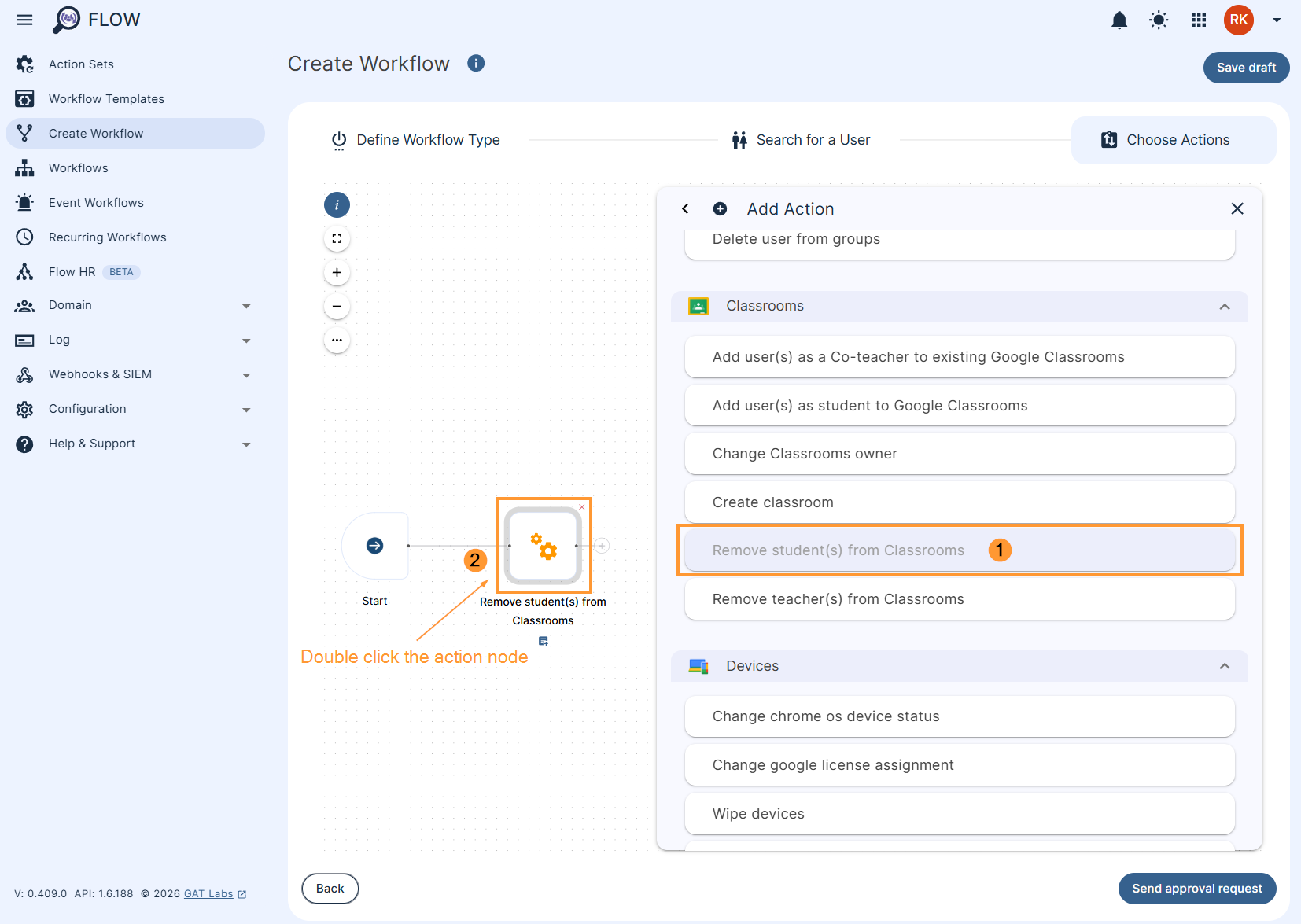
The selected action will appear in the workflow.
Remove student(s) from ALL Classrooms #
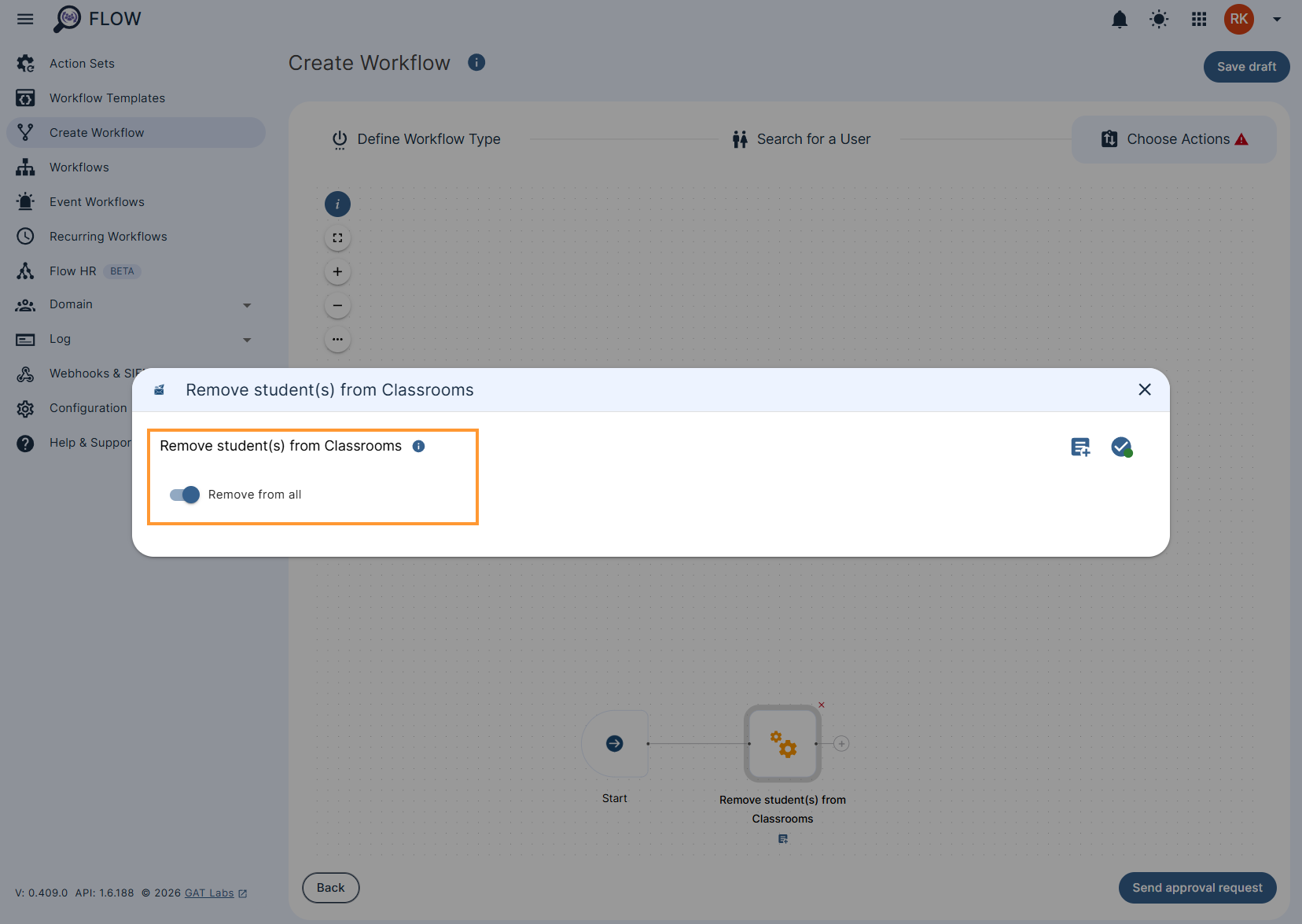
By default, removal from ALL Classrooms is set up.
Keep the option enabled if the student(s) must be removed from all existing Classrooms:
Remove student(s) from specific Classrooms #
To select specific classrooms from which to remove students, deselect the “Remove from all” option to reveal the “Remove from” option:
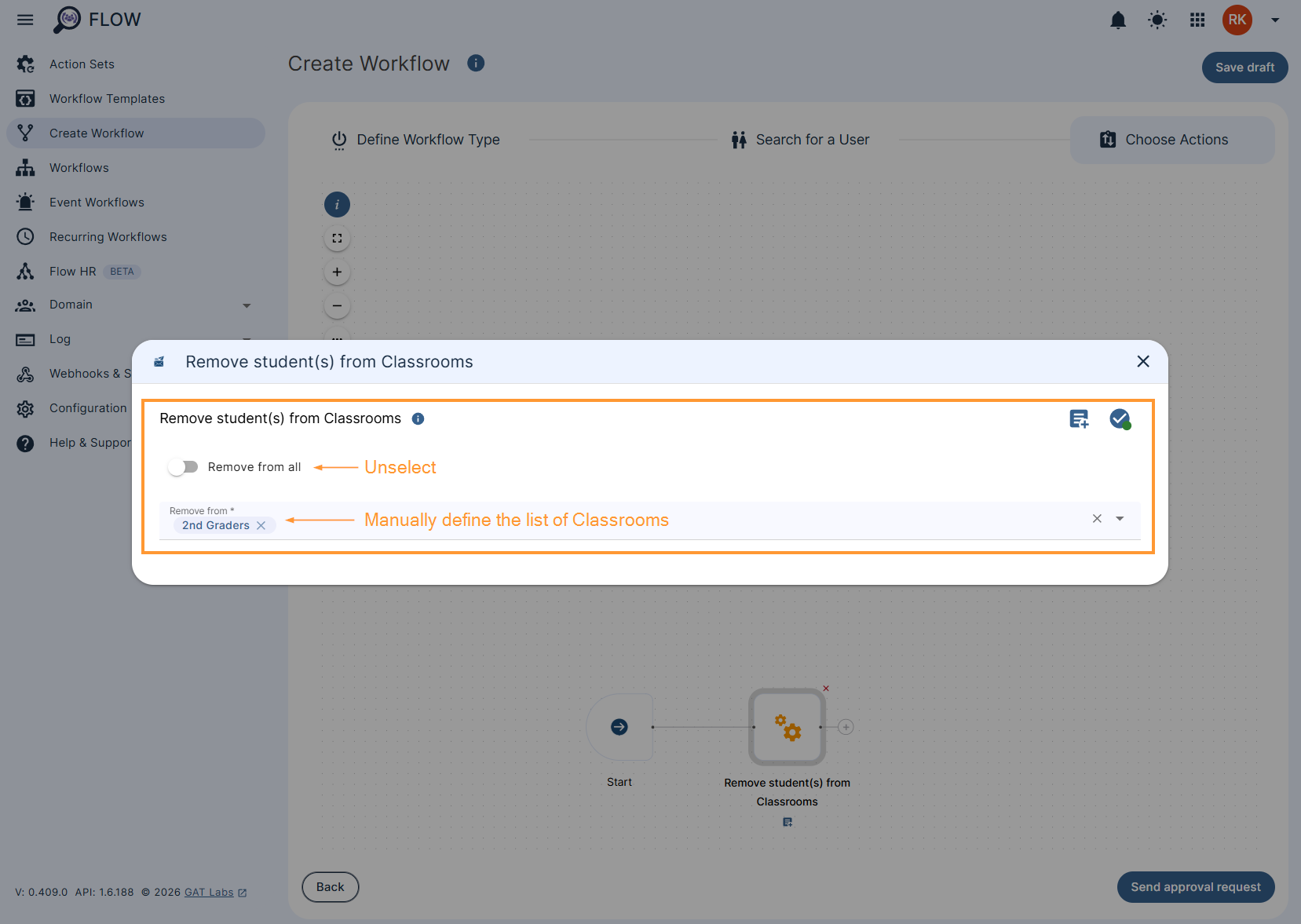
Using this option, you can manually define which classrooms you want the action to be executed for.
Once ready, Send approval request.
Security Officer verification #
The Security Officer must approve the request for the workflow to proceed with the execution.
They will receive an email that leads them to the approval page in GAT Flow.

They can review the request by clicking on the link from the email that brings them to the GAT Flow Approval tab in GAT Flow.
Results #
Once initiated, GAT Flow will remove the selected users from all or specific existing Google Classrooms, based on the action setup.
Additionally, depending on the domain’s number of classrooms, the process may take some time to exclude the selected users from the Google Classrooms.


