

GAT Flow is a User management tool part of the GAT Suite of products. It allows Google Workspace Admins to Onboard, Offboard, and Modify users of the domain.
It allows taking bulk action on multiple users at the same time. The actions the can be taken are
- Drive
- Calendar
- Users
- Groups
- Classrooms
- Devices
For Email one of the options available is setting up Email delegation
Create Workflow #
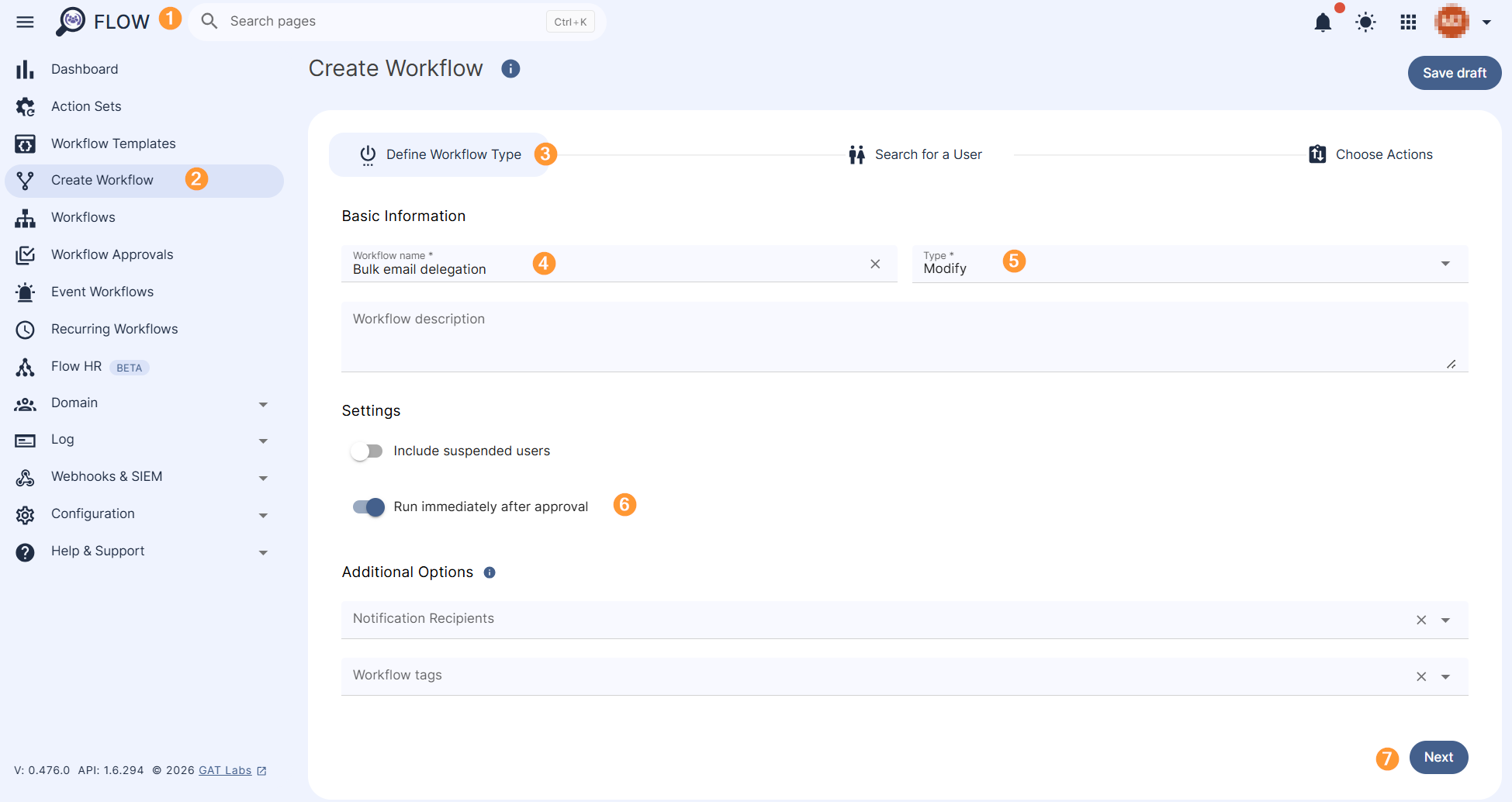
Navigate to Flow (1) > Create workflow (2)
Under Define Workflow Type (3)
- Name – enter a name for the workflow (4)
- Description – a description of the workflow can be added
- Type – select the workflow type (5)
- Onboard – onboard and add new users to the domain
- Modify – modify and update existing users of the domain
- Run immediately after approval (6)
- Next – click on the button to proceed (7)
Search for a User #
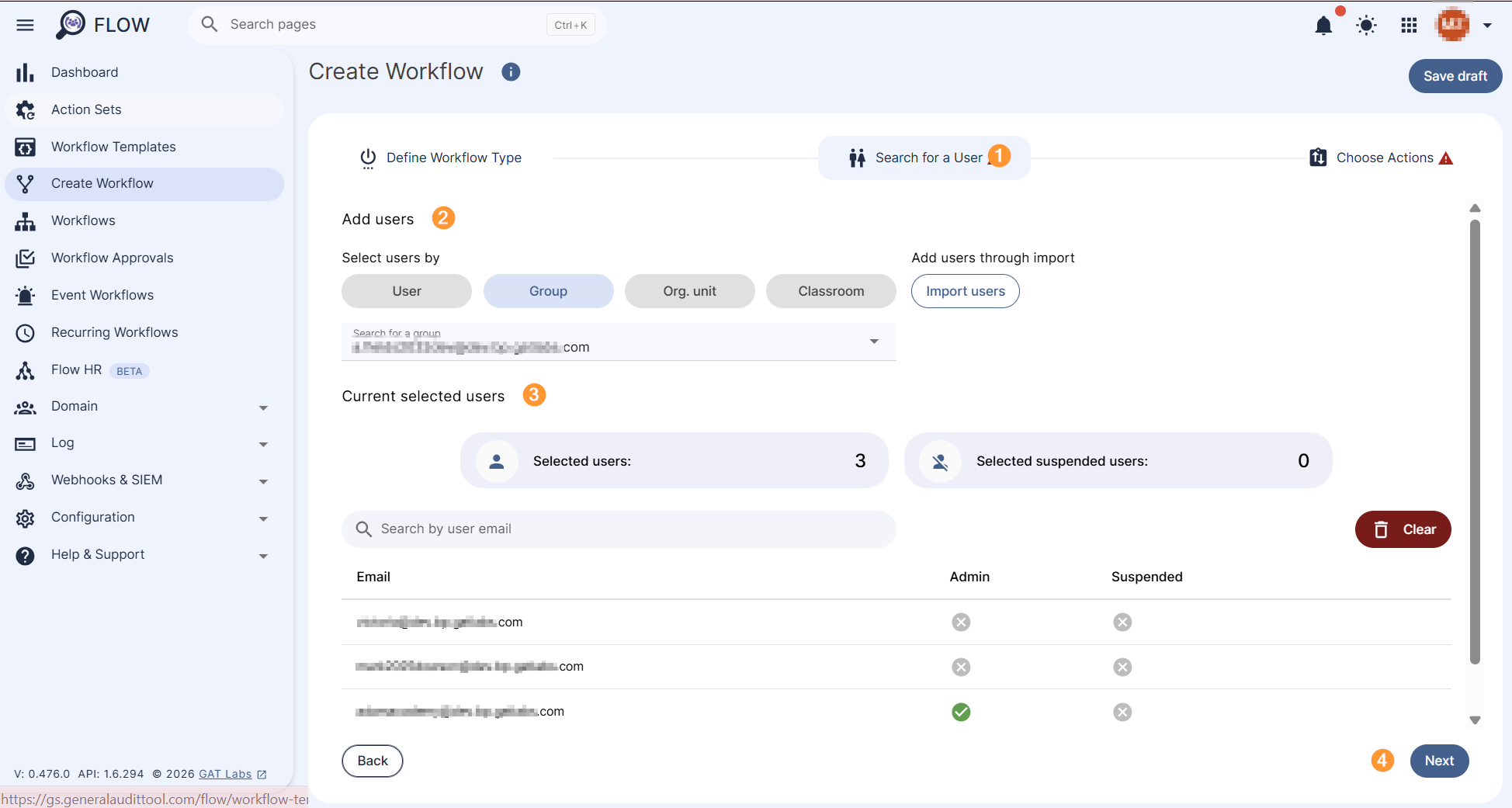
In Search for a User select the users which emails must be delegated (1).
- Search for a user
- Search for a group
- Search for an OU
Search by users individually, group of users, org. unit of users and even import users via Google Sheets (2-3)
Click on the Next button (4) to proceed further.
Choose actions #
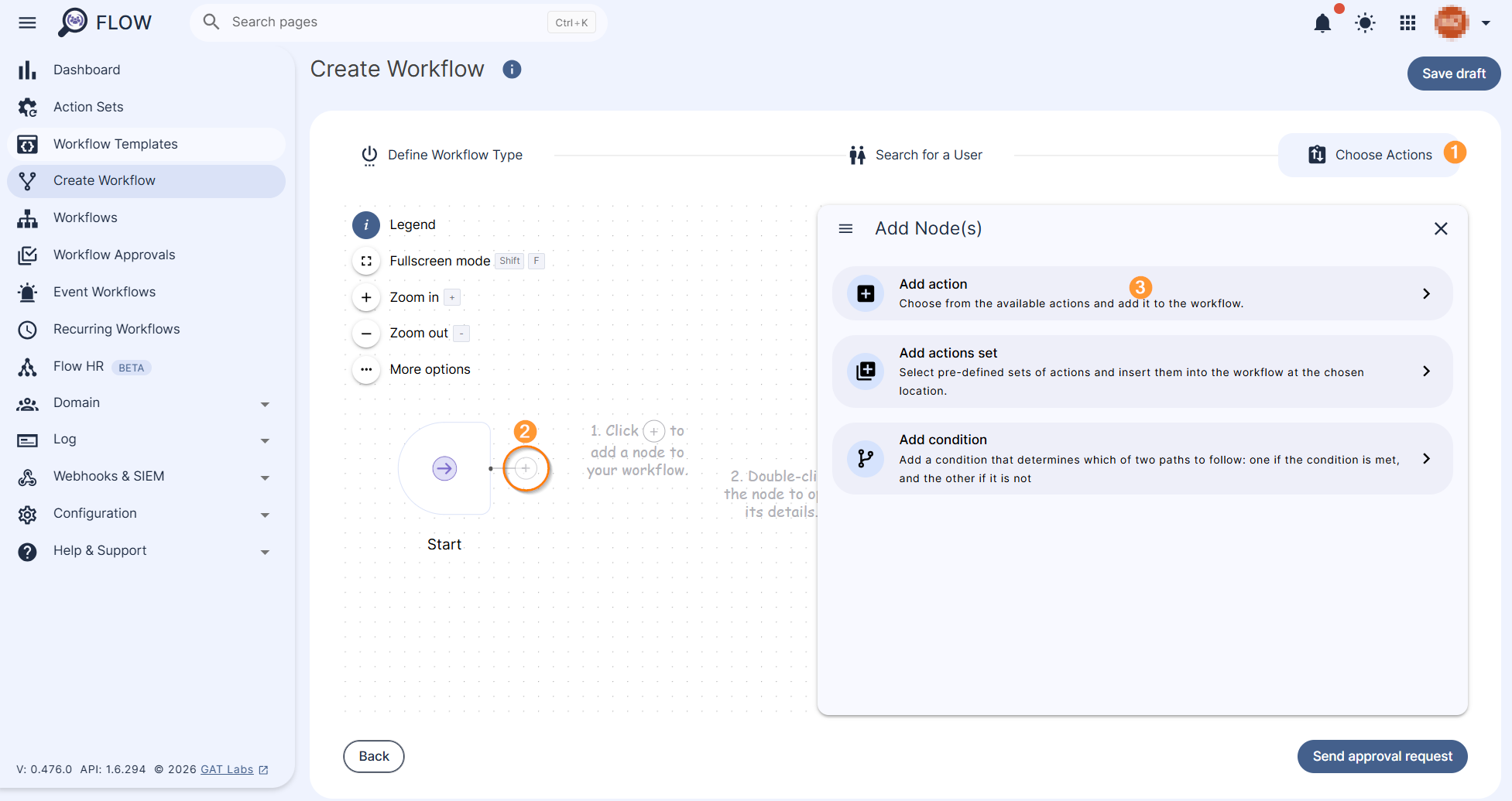
Under the Choose Actions section (1), click on the + button (2) and Add action (3). A pop-up menu with all the available actions will be displayed.
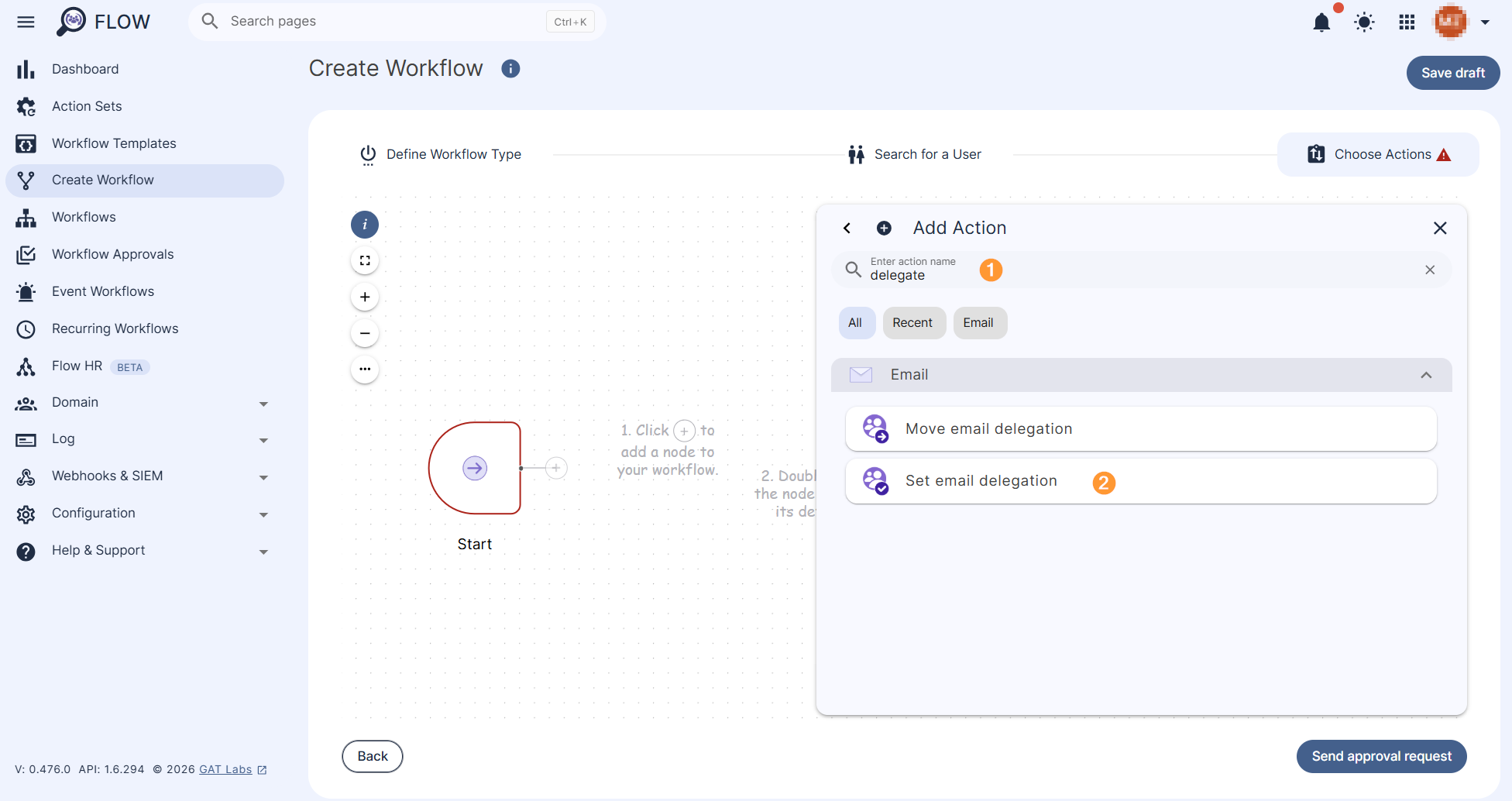
Search (1) and select the Set email delegation option (2) from the available list.
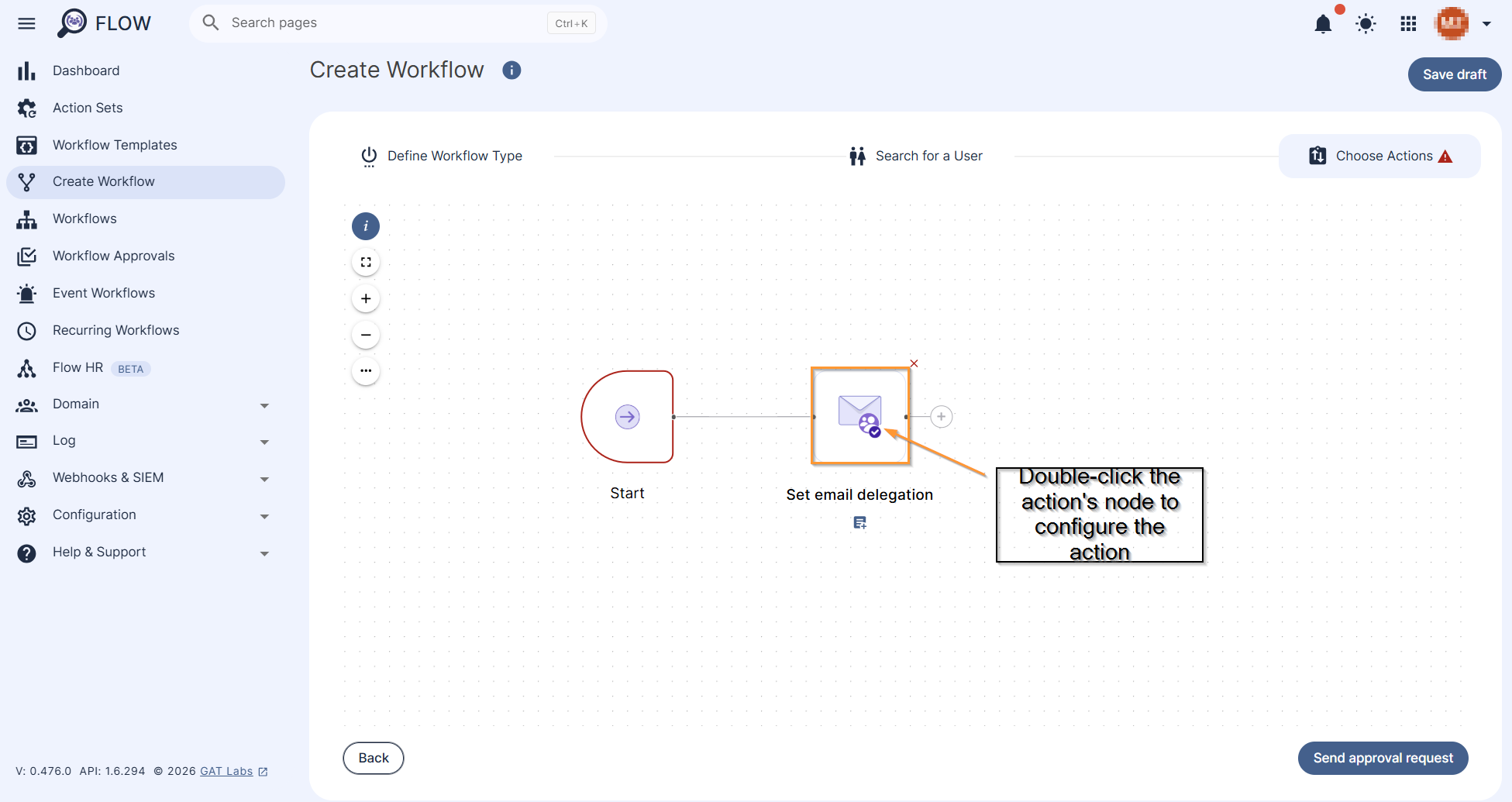
The Set email delegation action will be added to the workflow node section. Double click on the action node to open the action’s configuration section.
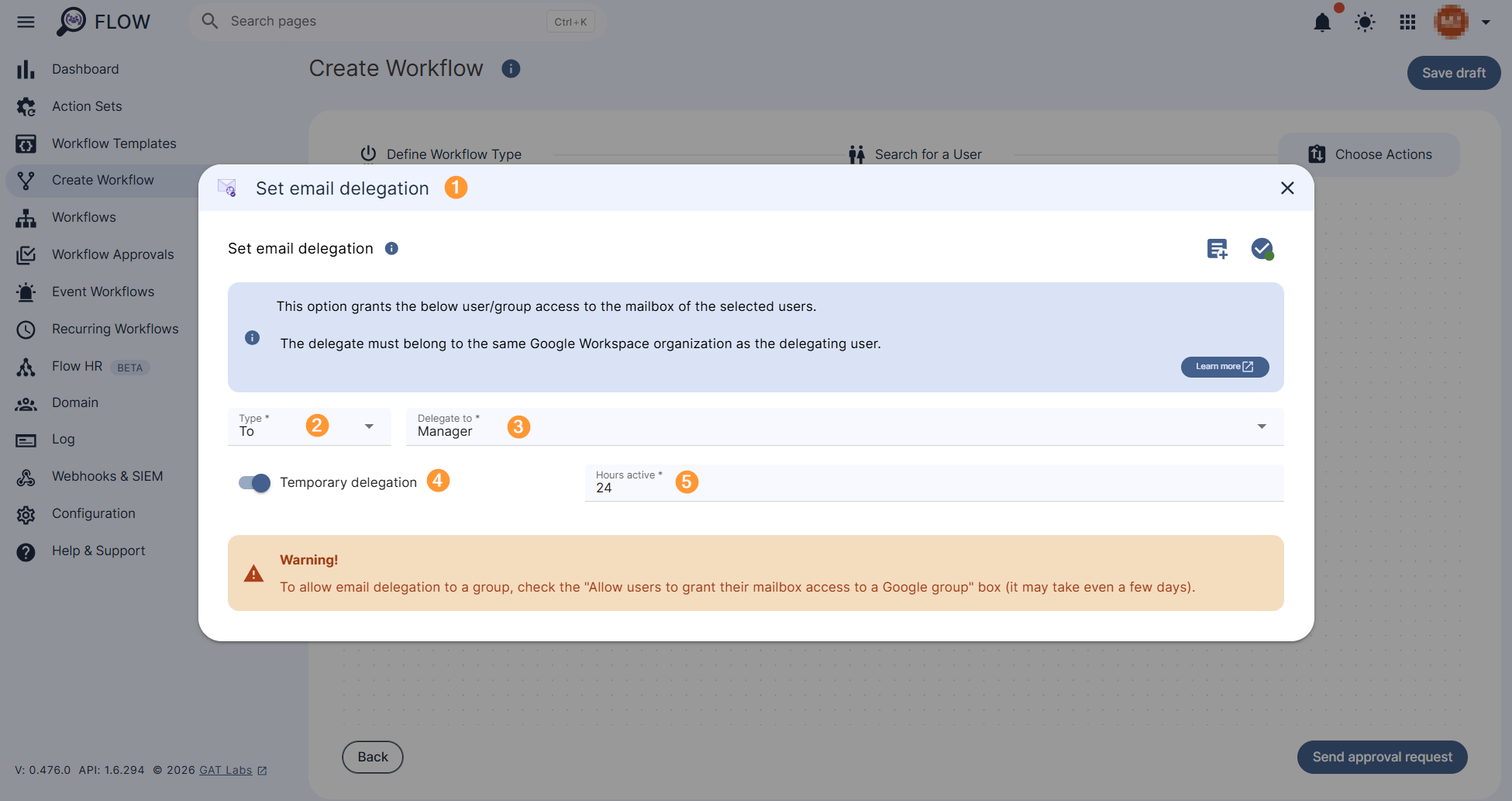
Once the node opens (1), define the action settings. NOTE: As Set email delegation feature is bilateral, an Admin can set email Delegation To or From the selected user(s).
Delegate TO action triggers delegation from the user(s) selected in this workflow to the user specified in the below job setup (in other words: one user (‘Manager‘) gains access to the email box of one or multiple users).
Choose the desired action and fill in the details (1):
- Delegate to: enter the email (user) who will have Delegated access to all the selected users (2-3)
- Delegate from: enter the email (user) whose access will be Delegated to all the selected users
- Temporary delegation – click on the checkmark to enable temporary time (4)
- Hours active – how long the Email delegation will last (if ‘Temporary delegation’ is enabled) (5)
Delegate FROM action triggers delegation from the user specified in the below job setup to the user(s) selected in this workflow (in other words: one or multiple users gain access to one user’s email box (‘Manager’)).
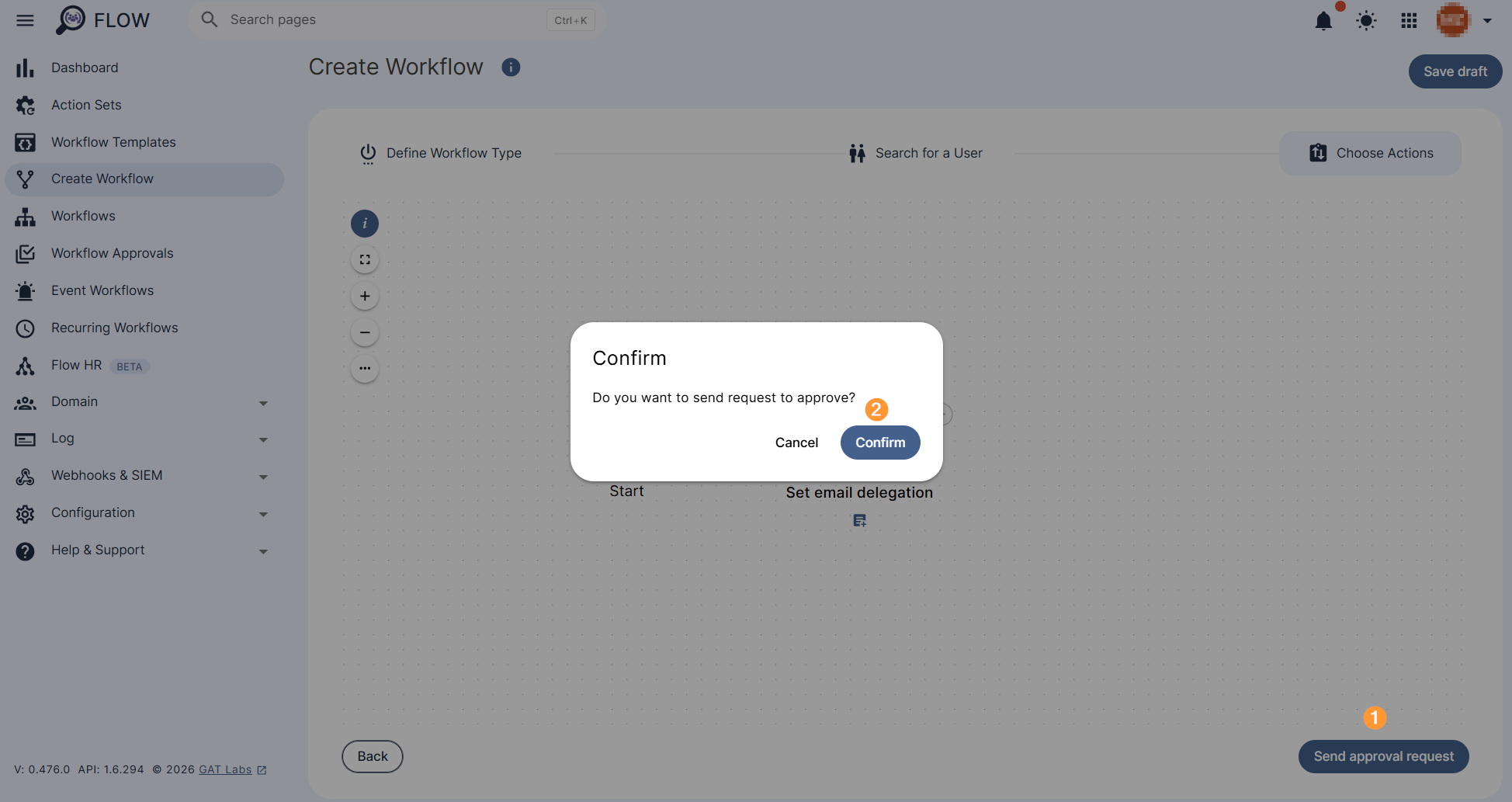
When finished, click anywhere outside the action node to close it and select Send Approval Request (1 )to the Security Officer for review. Confirm (2) to proceed.
Note: If there is a pre-approval set, the Workflow can be executed without Officer approval
Security officer approval #
The Security Officer will receive an email notification for verification.
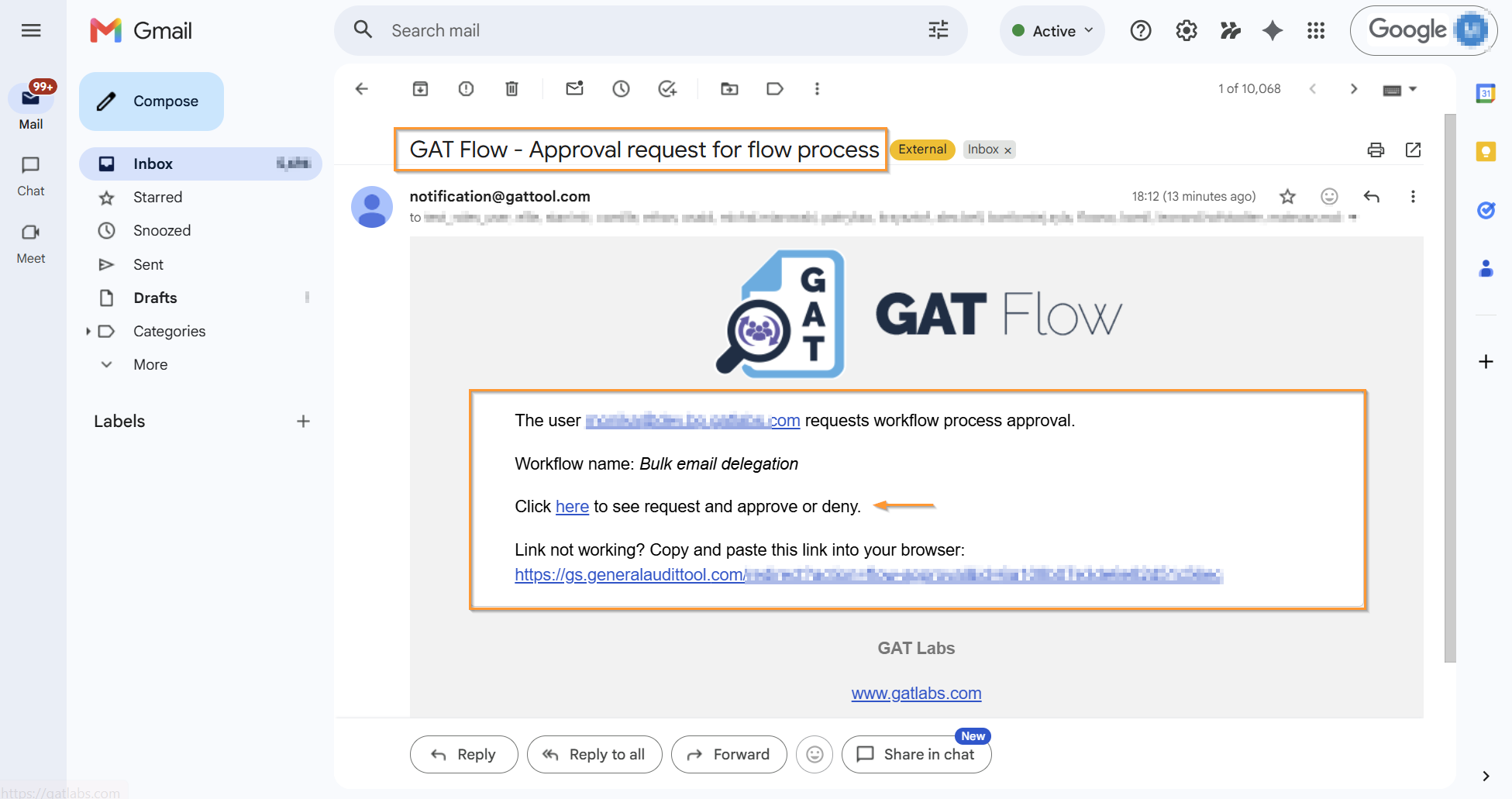
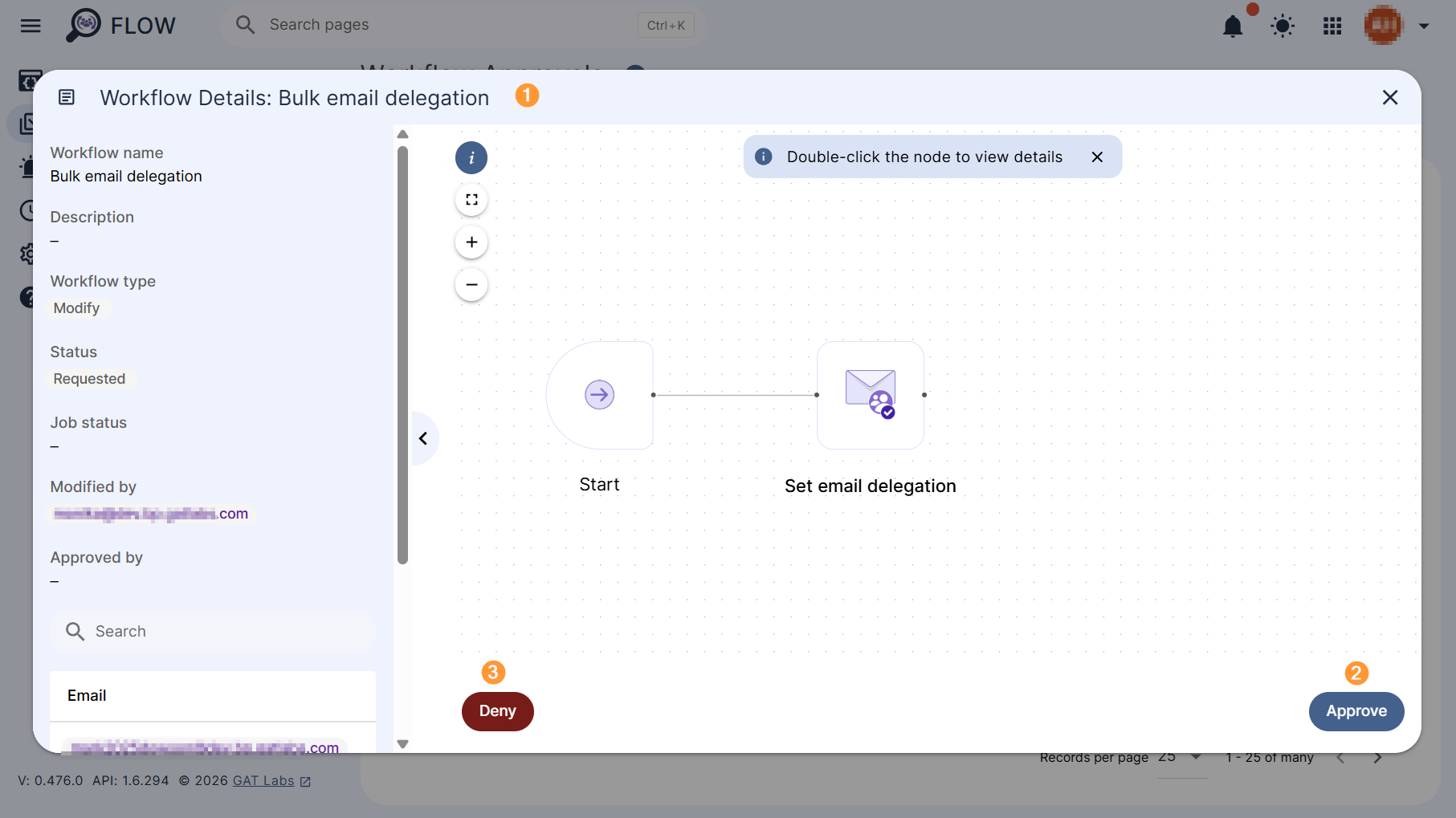
After clicking the link in the email, they will be redirected to the approval section of the relevant workflow in Flow (1), where they can review the request and approve (2) or deny it (3).
Result #
When the request is approved, the Email delegation job will be set and requested to run.
Note: It might take some time for the job to run, depending on the size and actions required.
The Email delegation will be set. The Delegate to user will have access as an Email delegate to all users chosen in the Search for a user section.
The Email delegate will have access to the Inboxes of all bulk selected users.
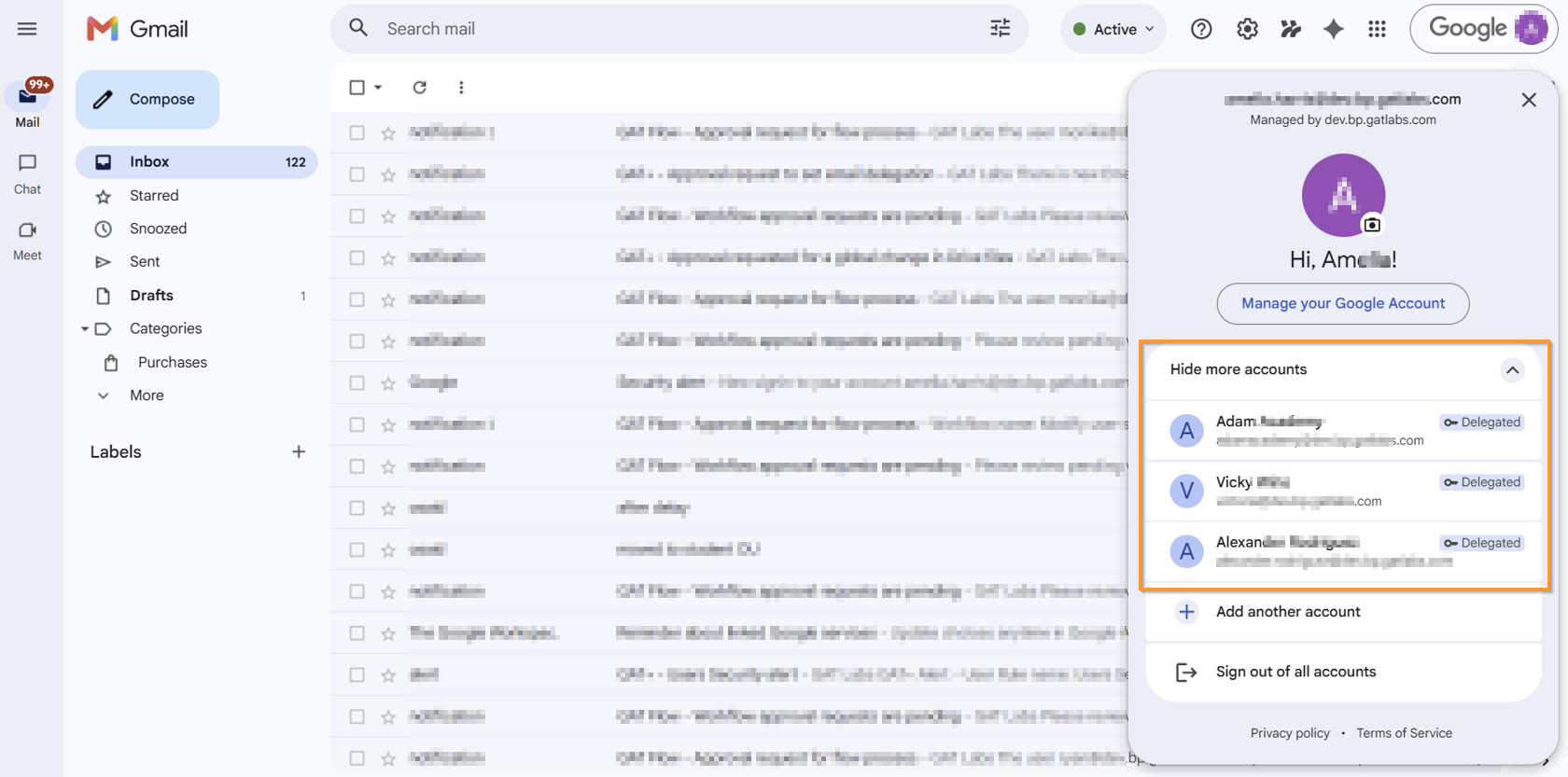
Note: Refresh the Gmail inbox of the delegate to view the emails of the delegated accounts.
When the time deleted in “temporary delegation” expires, the delegation will be automatically removed.


