

Setting the Time Zone for a Group of Users on Your Domain with Flow #
Within GAT Flow, admins and auditors are able to set a user’s time zone settings in bulk.
For this example, we will create a simple workflow to change the time zone for a number of users in bulk.
Creating the workflow #
To begin, launch GAT Flow and select ‘Create workflow’ from the left-hand side menu.
In the Define workflow type, enter the details
- Name – name for the workflow
- Type – select the type of workflow to modify to update the users
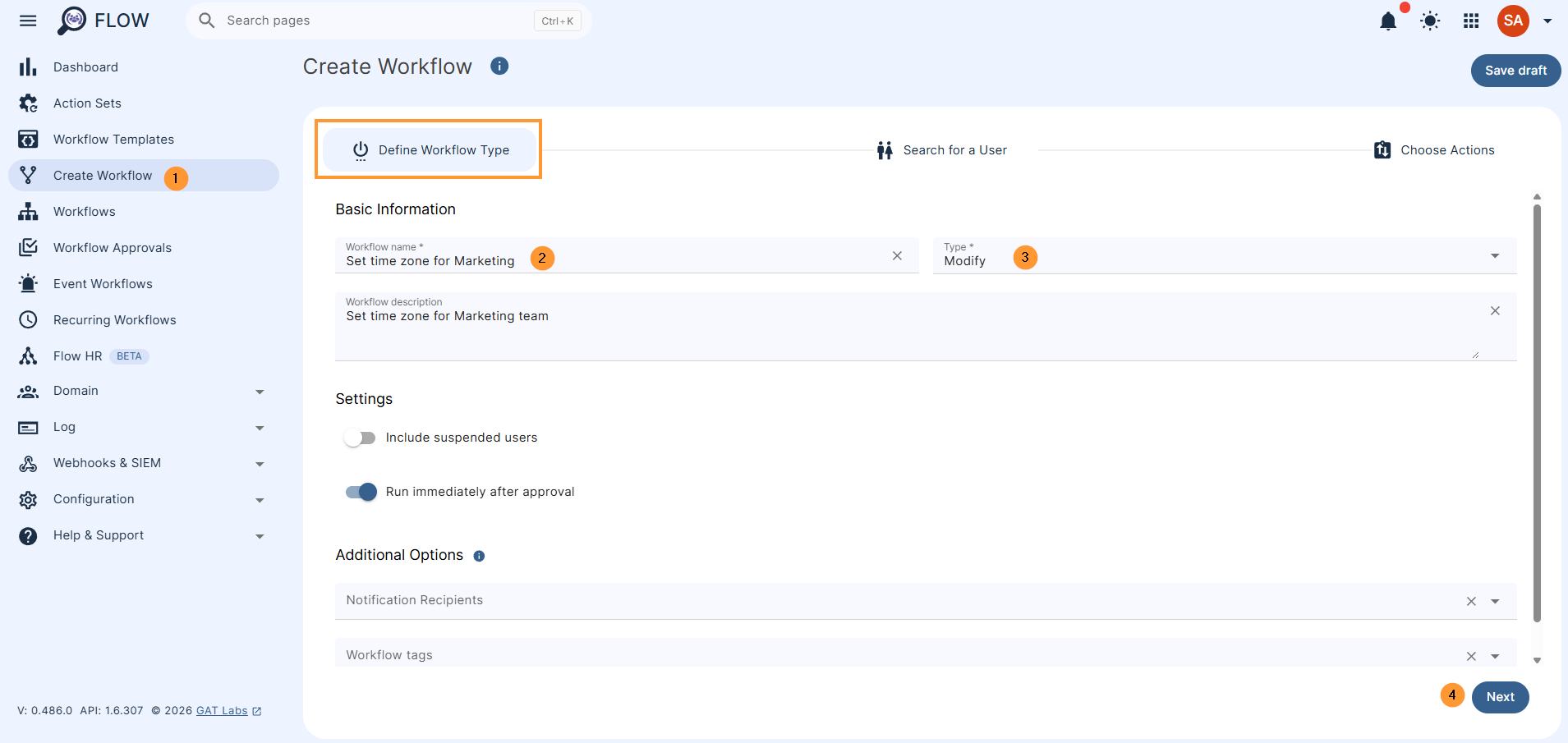
Click ‘Next’ to proceed.
On the next page, select the users you want to set the time zone for.
You can select them by either a single User, a Group of users, or an Organisational Unit (OU).
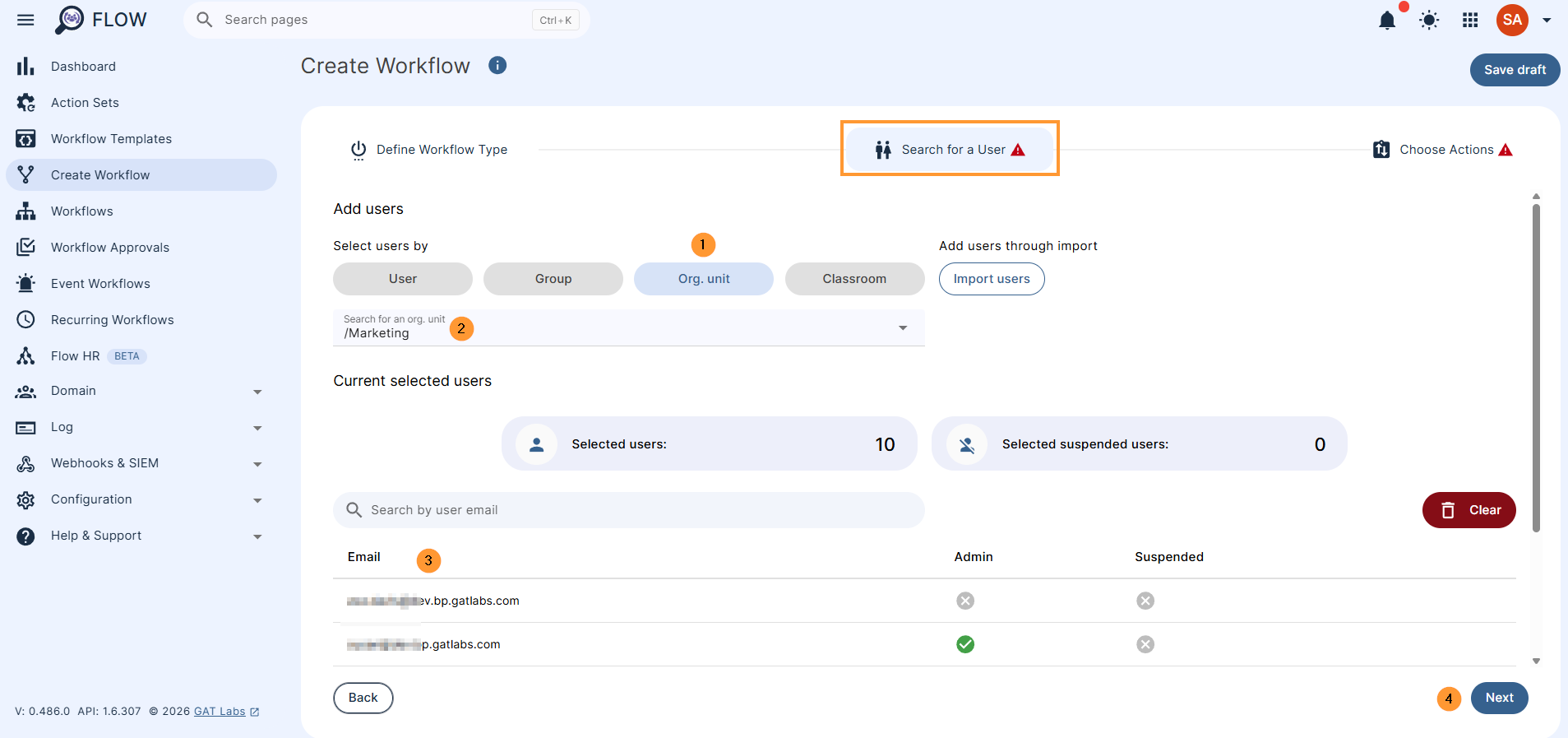
When you are finished selecting all the users you’d like to include, click ‘Next’.
NOTE: When selecting by OU, you will need to click ‘Recursive’ (beside the OU) if you want the users from the child OU’s to be included. Many OUs on your domain may contain child OU’s, and the users may be under them.
From the next screen, press the first ‘+’ button to add an action, and select ‘Set time zone’ from the list.
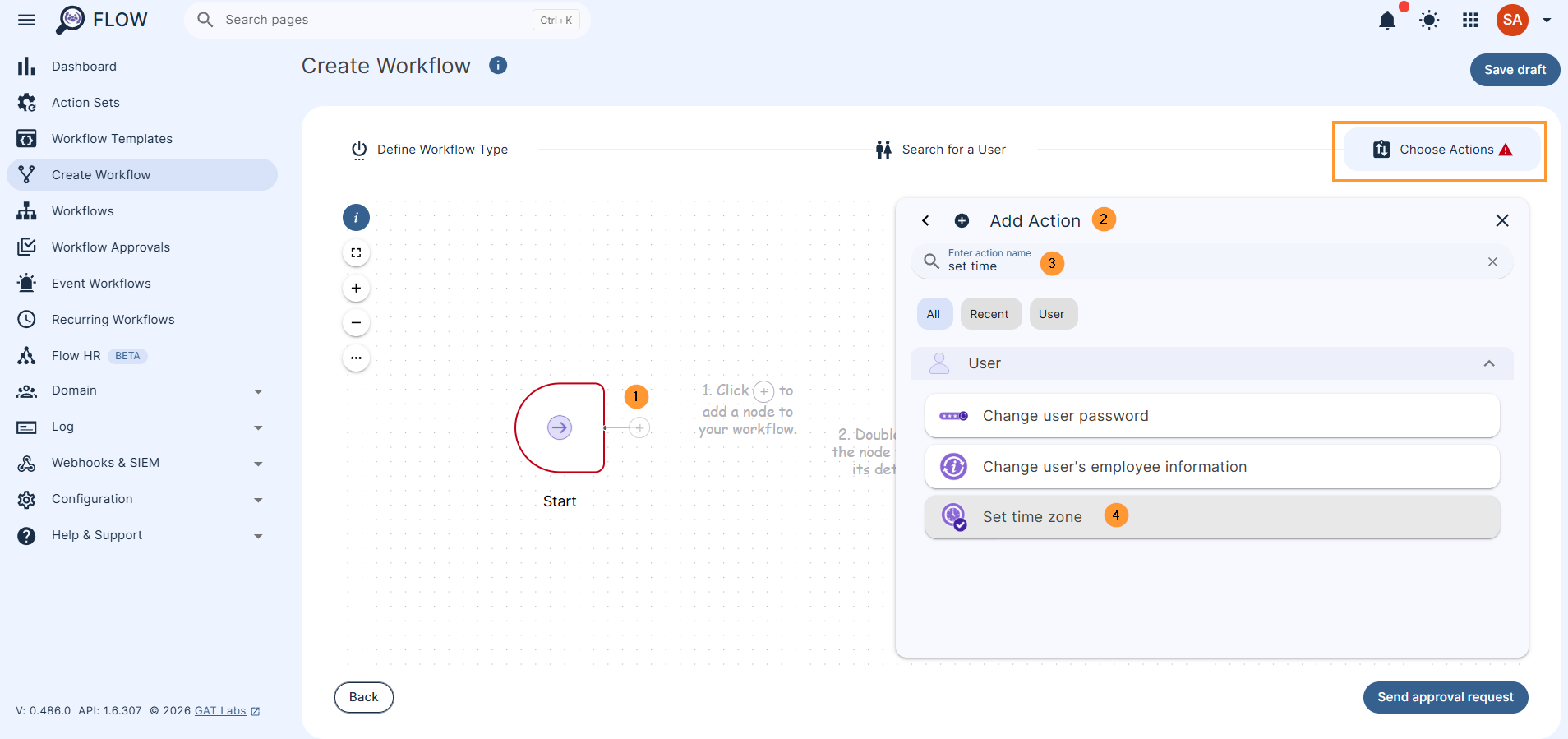
Double-click on the action and fill in the details, set up the time zone
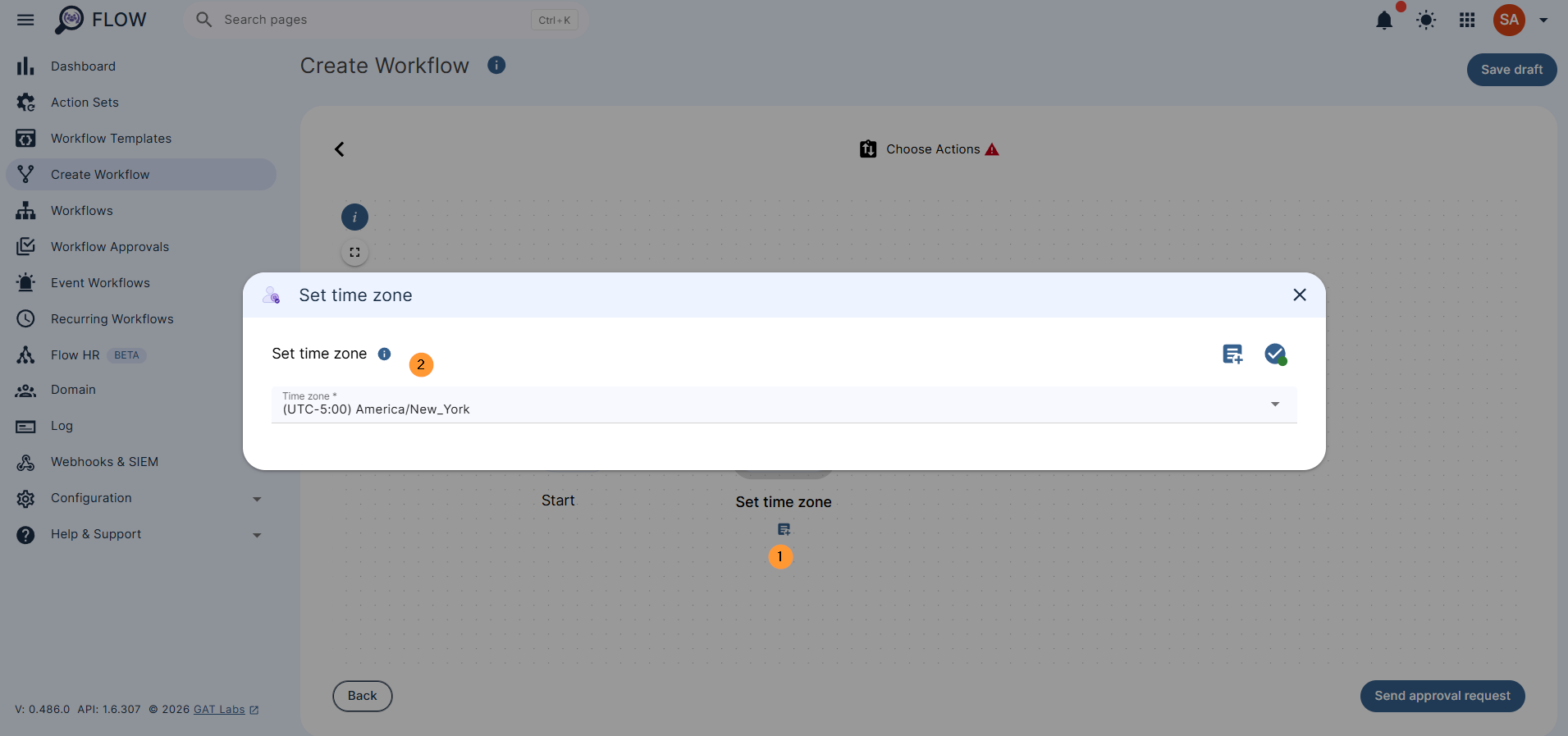
You can add other actions to the workflow at this point by clicking the ‘+’ button again if you like.
When you are finished, click ‘Send approval request,’ and a request will be sent to the Security Officer for approval.
Once the Security Officer approves the request, the workflow will be executed, and the selected user’s time zones will be changed.
If pre-approval is used, the action will be executed right away.
Related Posts #
- GAT Flow: Conditional Workflows for Google Workspace
- GAT Flow Product Overview
- Revoke all apps for Google workspace User with GAT Flow


