

Edit your workflow and message the Security Officer about it in GAT Flow: #
There are several different ways of editing your existing workflows, either Event or Recurring workflows.
One of the options allows a basic edition of fields that do not require Security Officer approval – Edit basics.
The other two options require editing each field and must undergo approval by the Security Officer.
- Edit basic
- Edit and stop
- Edit and keep active
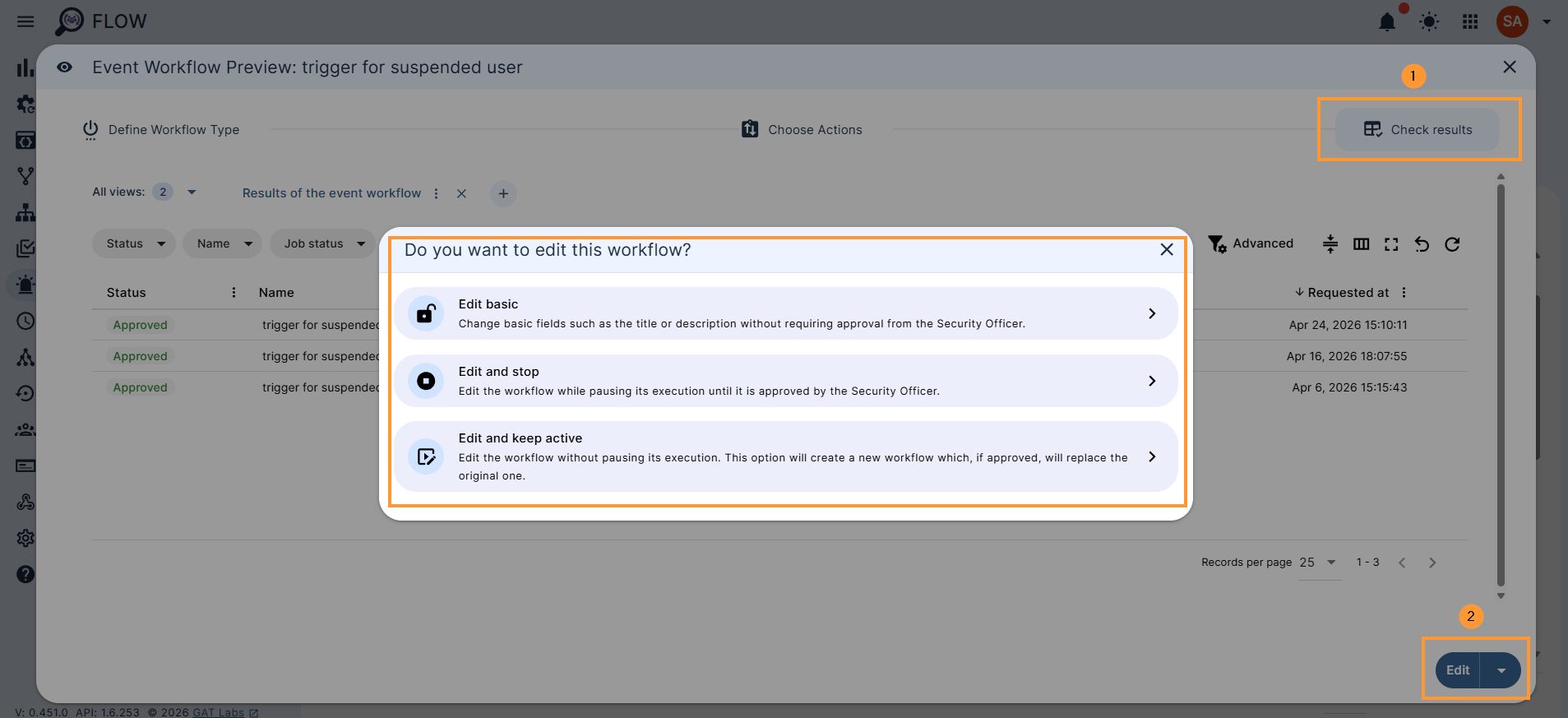
Edits requiring security officer review #
For edits requiring Security Officer review, we allow you to create and send a short message that can be used for efficient communication between the workflow editor and the reviewer – the Security Officer – for example, to highlight changes made to the workflow so that the approver can efficiently navigate through the edited workflow.
Edit basic #
The “Edit basic” option allows the workflow editor to make general changes to the following fields, and no security officer approval is required:
- Workflow Name
- Workflow Description
- Workflow tags
Change this data and click on the Save basic button
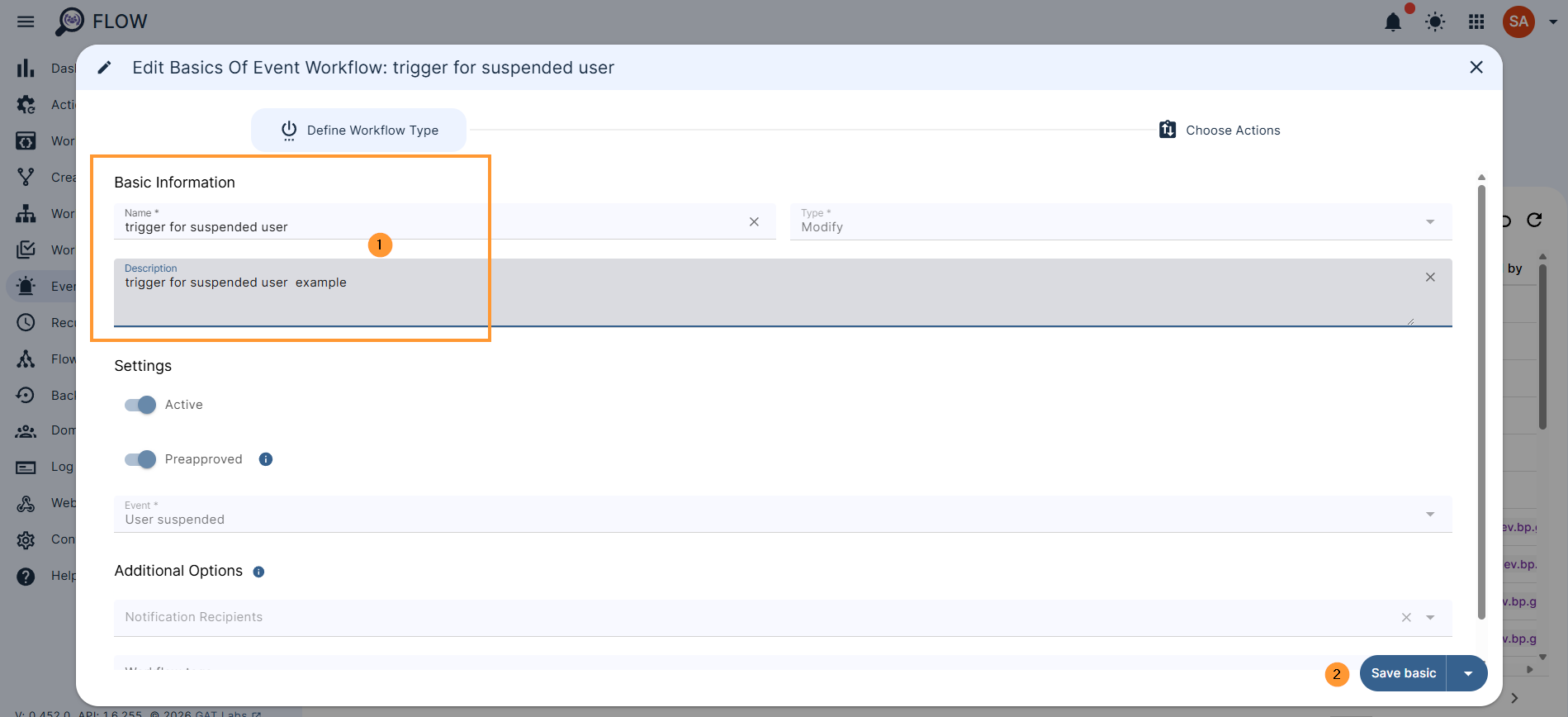
The basic data will be saved in the Event workflow.
Edit and stop #
Edit the workflow while pausing its execution until it is approved by the security officer.
Fill in all the information required to recreate and update the workflow. It would be an initial setup, where the previous actions will be added, can be updated, and new actions added.
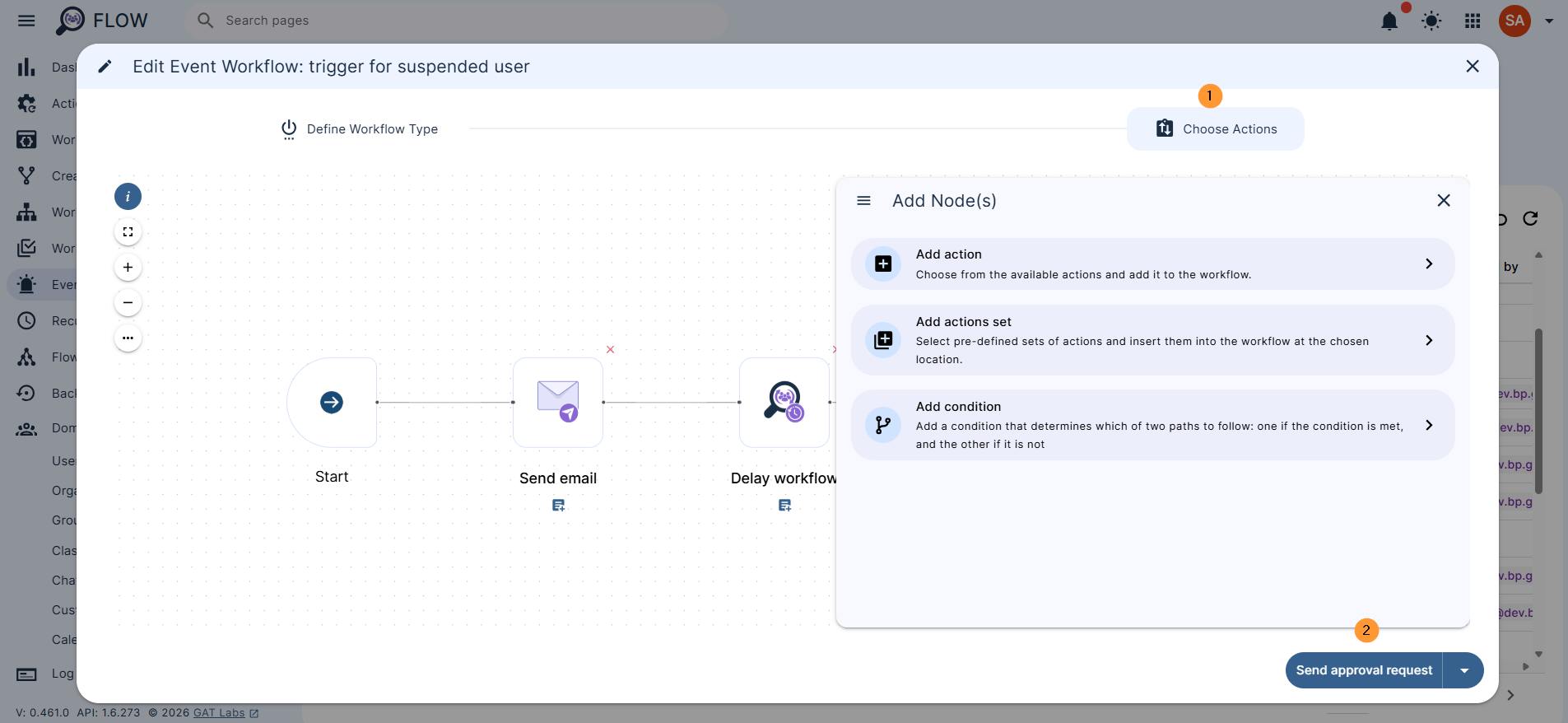
Once ready, click again on “Send approval request“.
The existing actions will be presented; you can edit them or add new actions.
Click on Send approval request. If approved, the existing workflow will be replaced with the newly created one.
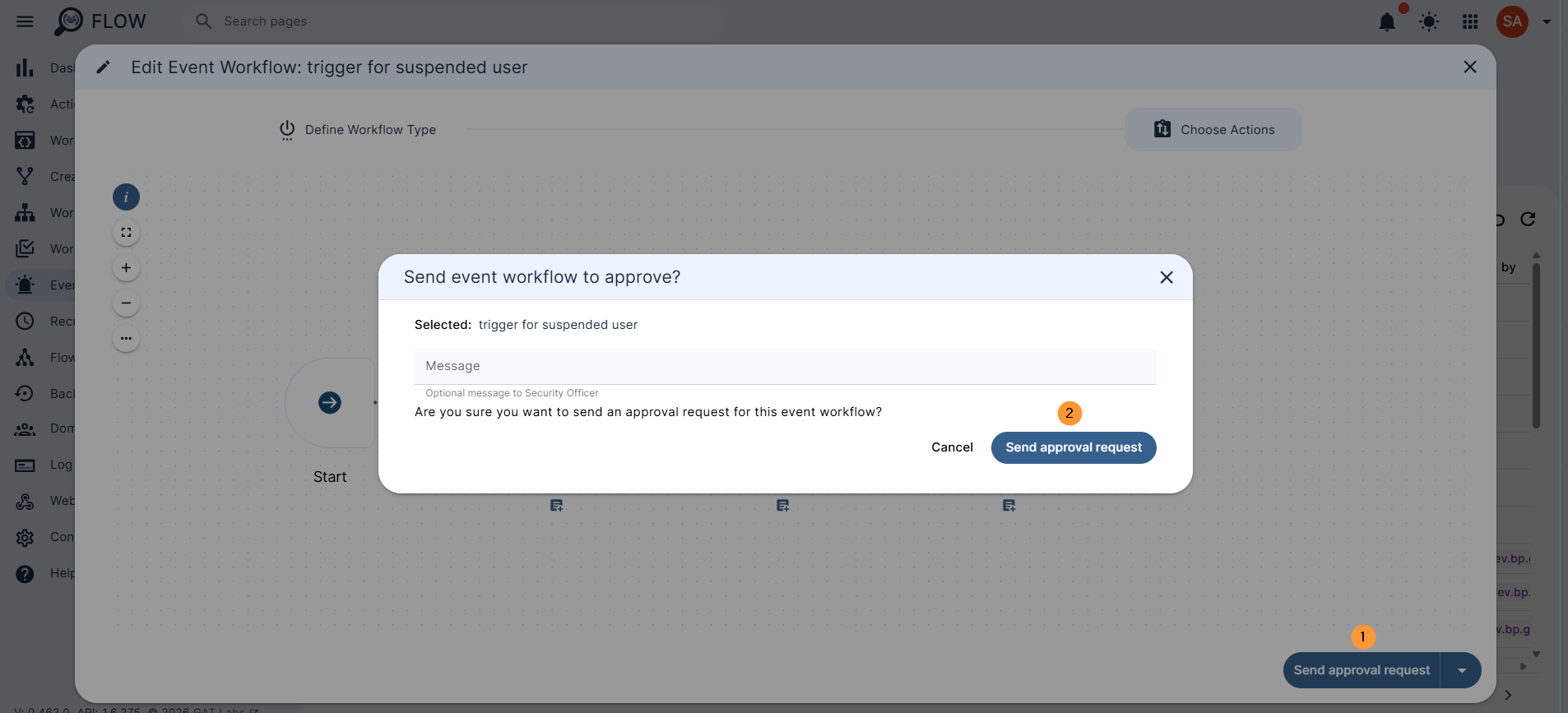
The Security Officer reads the message and can seamlessly review changes made to the workflow.
FAQ #
Q 1: What is the difference between “Edit and stop” and “Edit and keep active” when updating a workflow?
A 1: The key difference lies in whether your workflow remains operational while you wait for the Security Officer’s approval:
- Edit and stop: This option pauses the execution of your active workflow immediately. It will not run again until the Security Officer approves your updates. Use this if your changes are critical or if running the older version of the workflow could cause issues.
- Edit and keep active: This option allows your existing workflow to continue running without interruption. GAT Flow creates a “clone” of the workflow for your edits. Once the Security Officer approves the new version, it seamlessly replaces the old one. Use this to avoid any operational downtime.
Q 2: Do I need Security Officer approval every time I edit a workflow?
A 2: No, you do not need approval for basic administrative changes.
- If you only need to update the Workflow Name, Workflow Description, or Workflow tags, you can select the “Edit basic” option. These changes are saved instantly without requiring any review or approval from the Security Officer. Security Officer approval is only triggered when you edit operational fields or actions within the workflow using “Edit and stop” or “Edit and keep active.”


