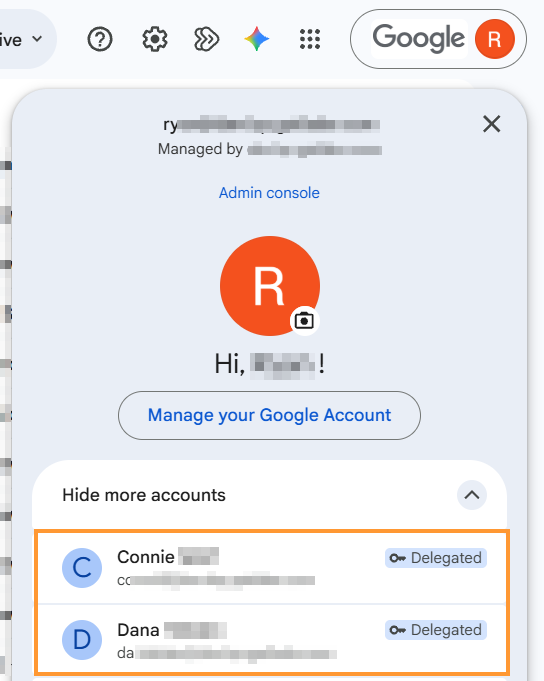

GAT Flow is a very intuitive and comprehensive tool used by Administrators to effectively and easily manage their Google domains.
It enables the mass sending of requests, which is why it is a very useful tool for efficient onboarding, offboarding, and/or modifying domain users.
One of the actions that can be easily performed is to delegate email not only to the individual user of your domain but also to Google Groups.
This is useful when a particular Group of people, e.g. members of the hr.project@domain.com group, needs to have access to particular users of the domain (Delegate TO Group called hr.project@domain.com),
Below are the steps to set up email delegation to a Google Group.
Create workflow #
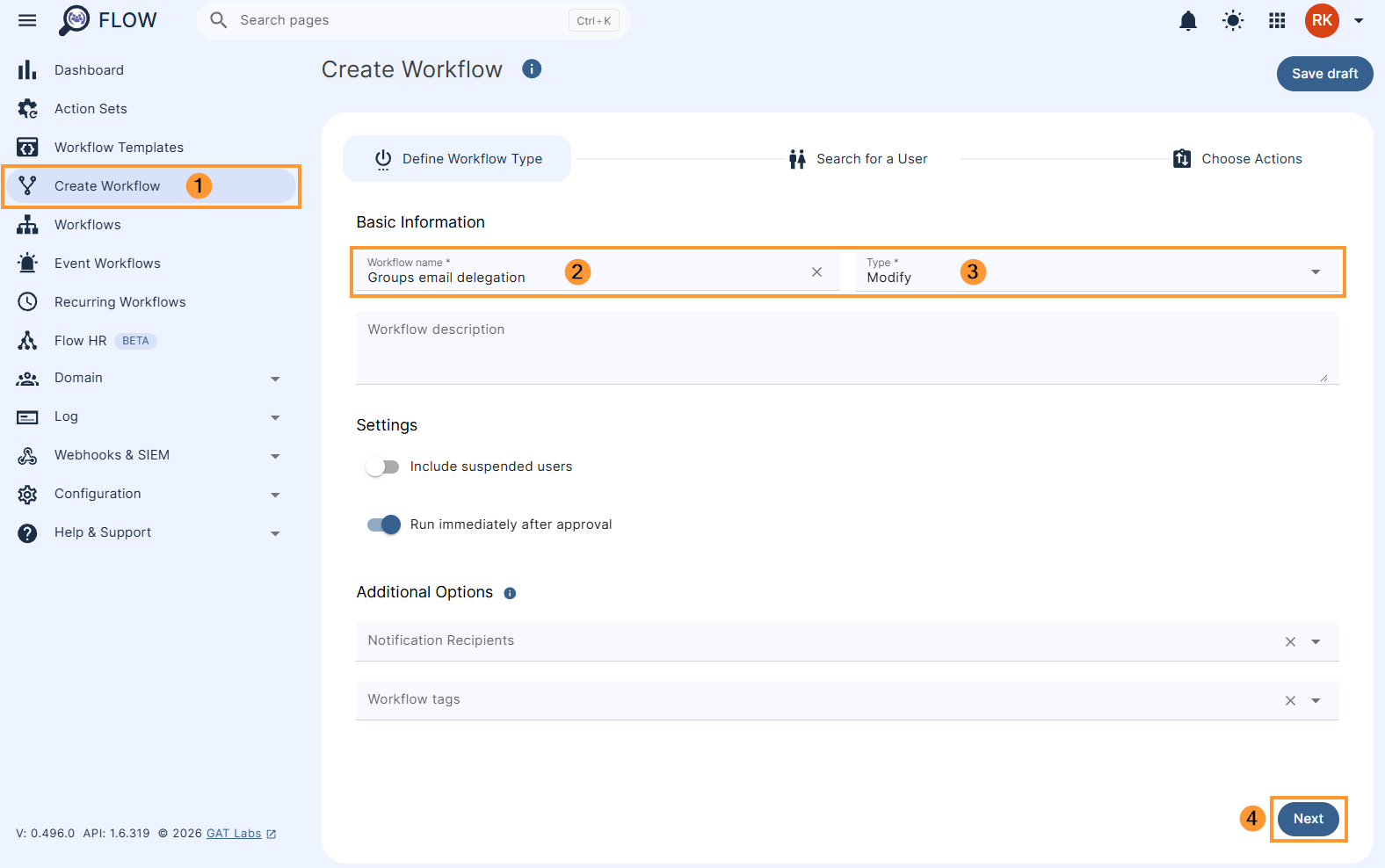
To create a workflow, navigate to Flow > Create workflow (1).
Next, fill in the details as follows under the Workflow type tab:
- Name – enter a name for the workflow, (e.g. ‘Groups email delegation’) (2)
- Type – select the type of workflow you want to use (Modify or Offboarding) (3)
- Next – click to proceed (4)
Select the user(s) #
Under the Search for a user section, select one user or multiple user accounts for which you want to set the email delegation (1).
Search and add the users via Search for a user, group, org. unit, or classroom or import them. The users’ accounts will appear in the list below (2)
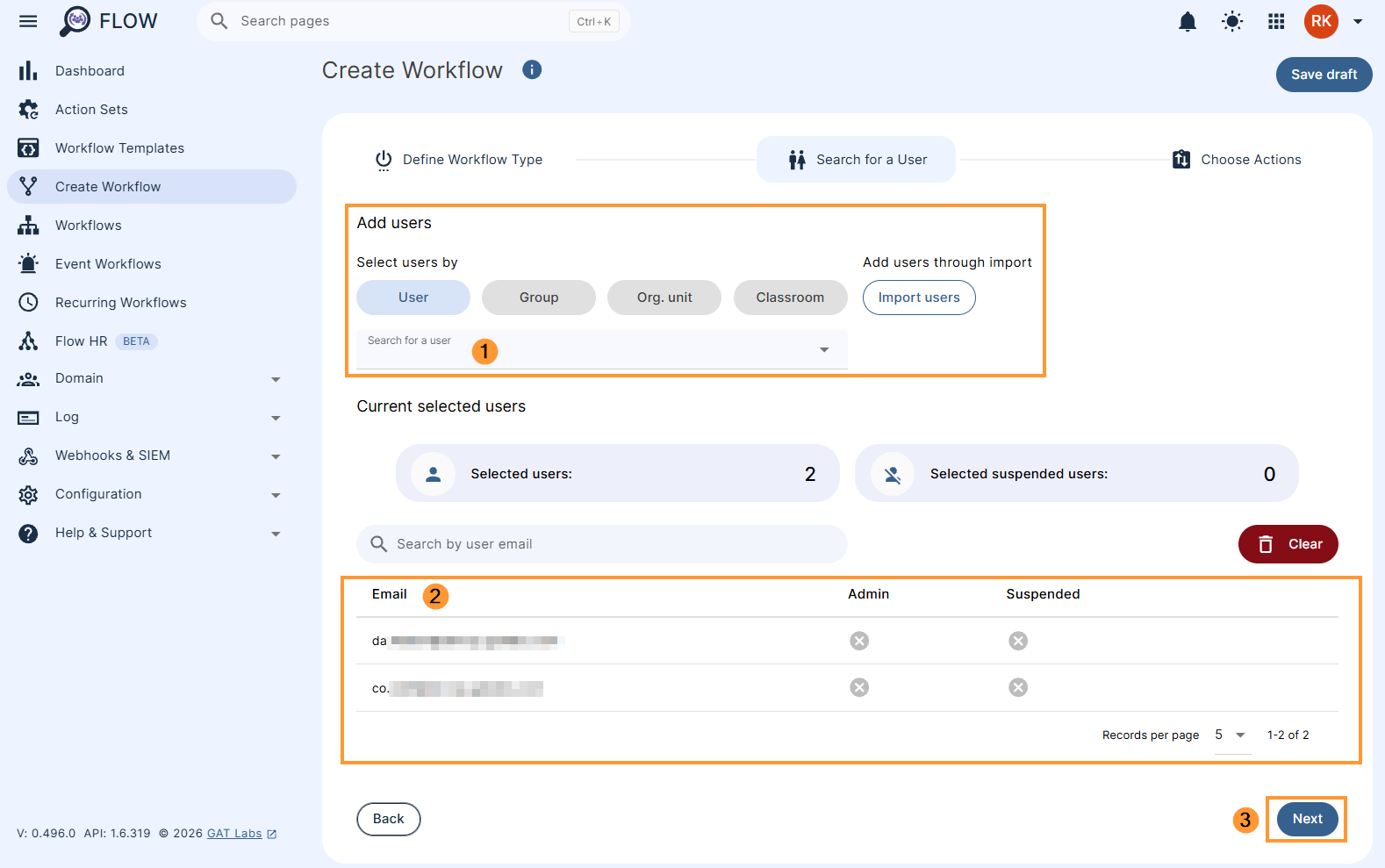
Once users’ emails are selected, click on Next (3).
Choose action #
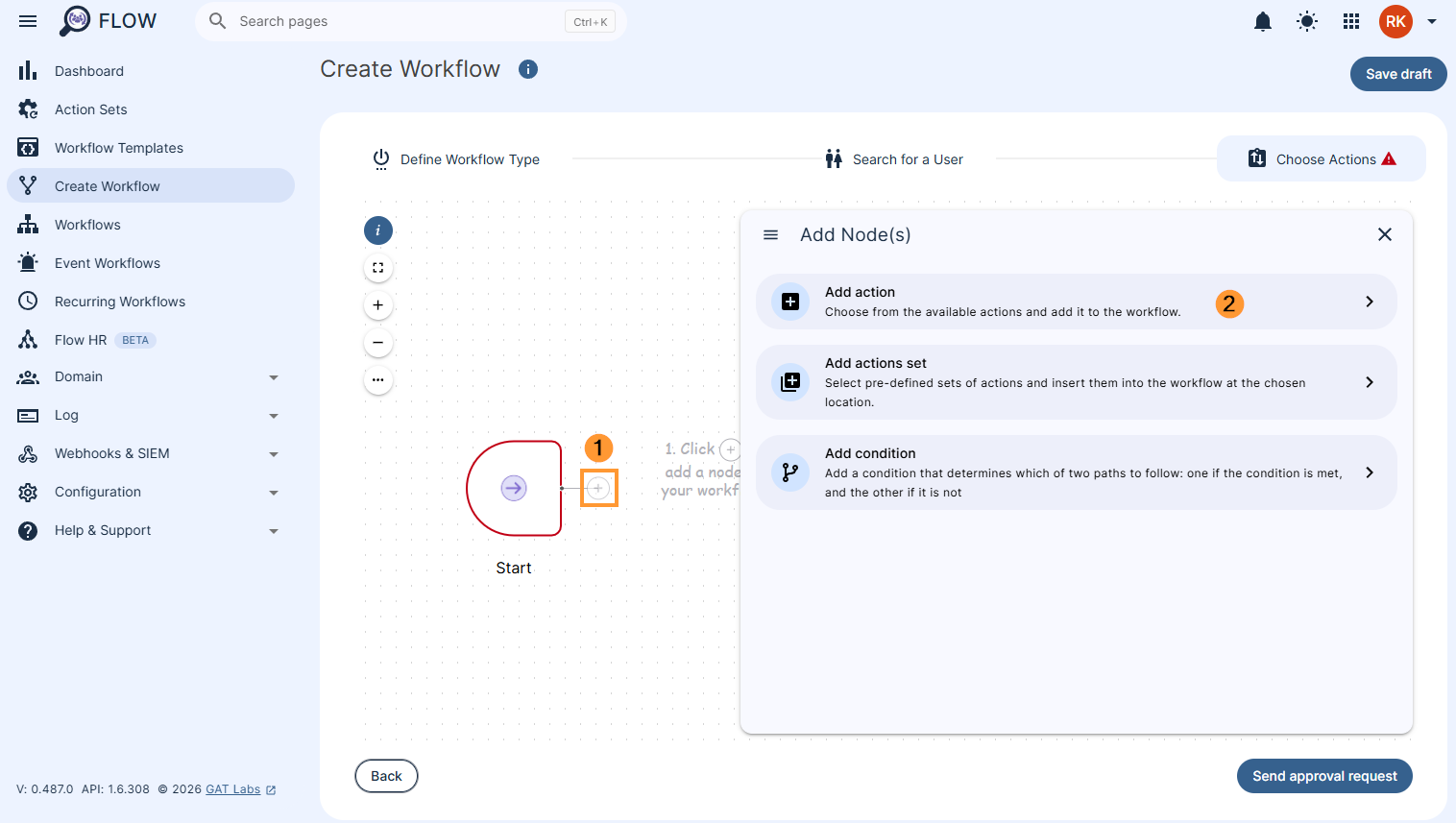
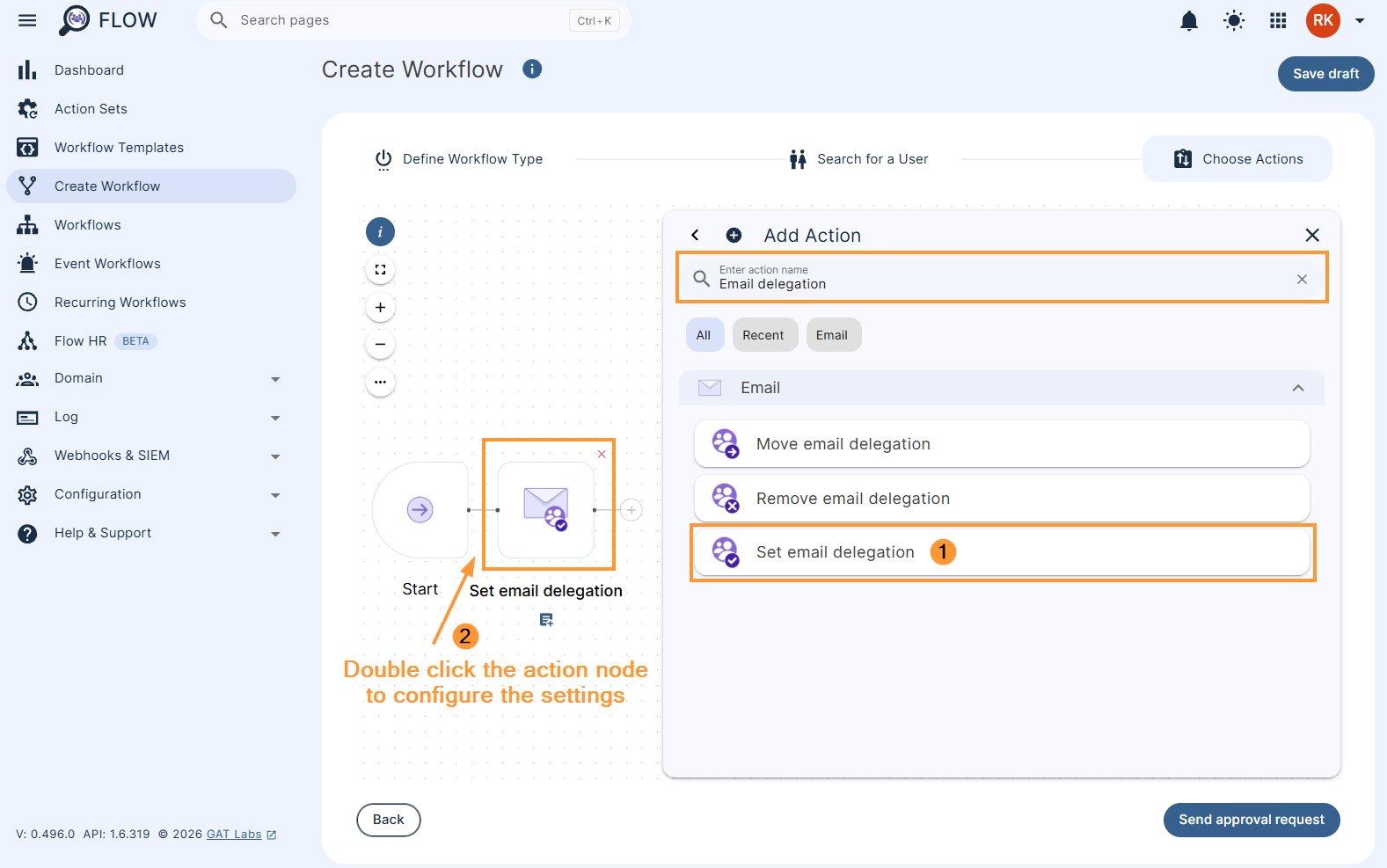
On the actions page, click on the (+) button (1) and then click the Add action button (2)
Search for the ‘Set email delegation‘ action.
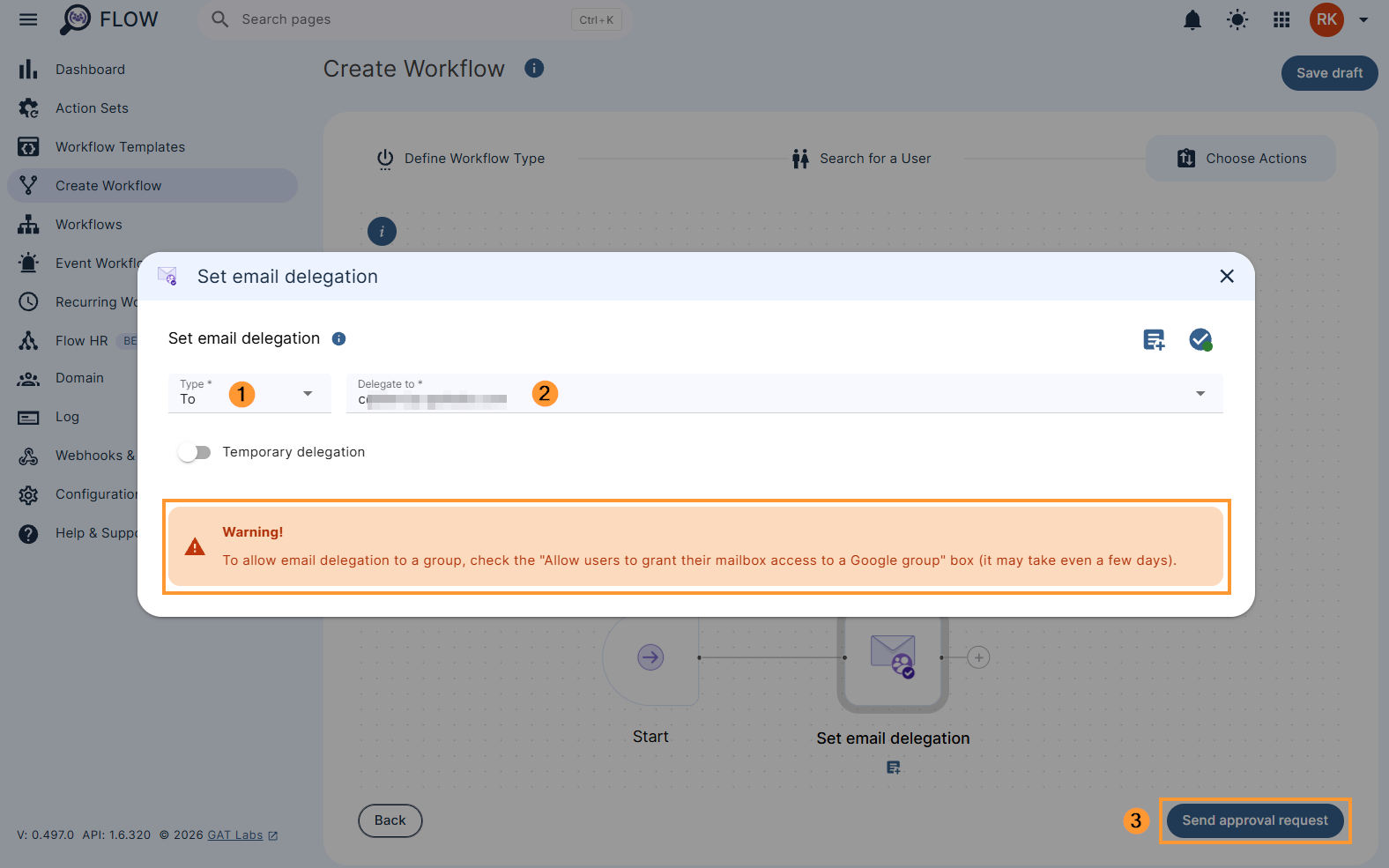
You will see the Delegate ‘To’ opinion displayed by default (1) and you can start typing the Group’s email address (2) that you wish to delegate other users’ mailboxes to.
When ready, Send approval request (3) to the Security Officer.
The Confirm! message will appear and ask as above:
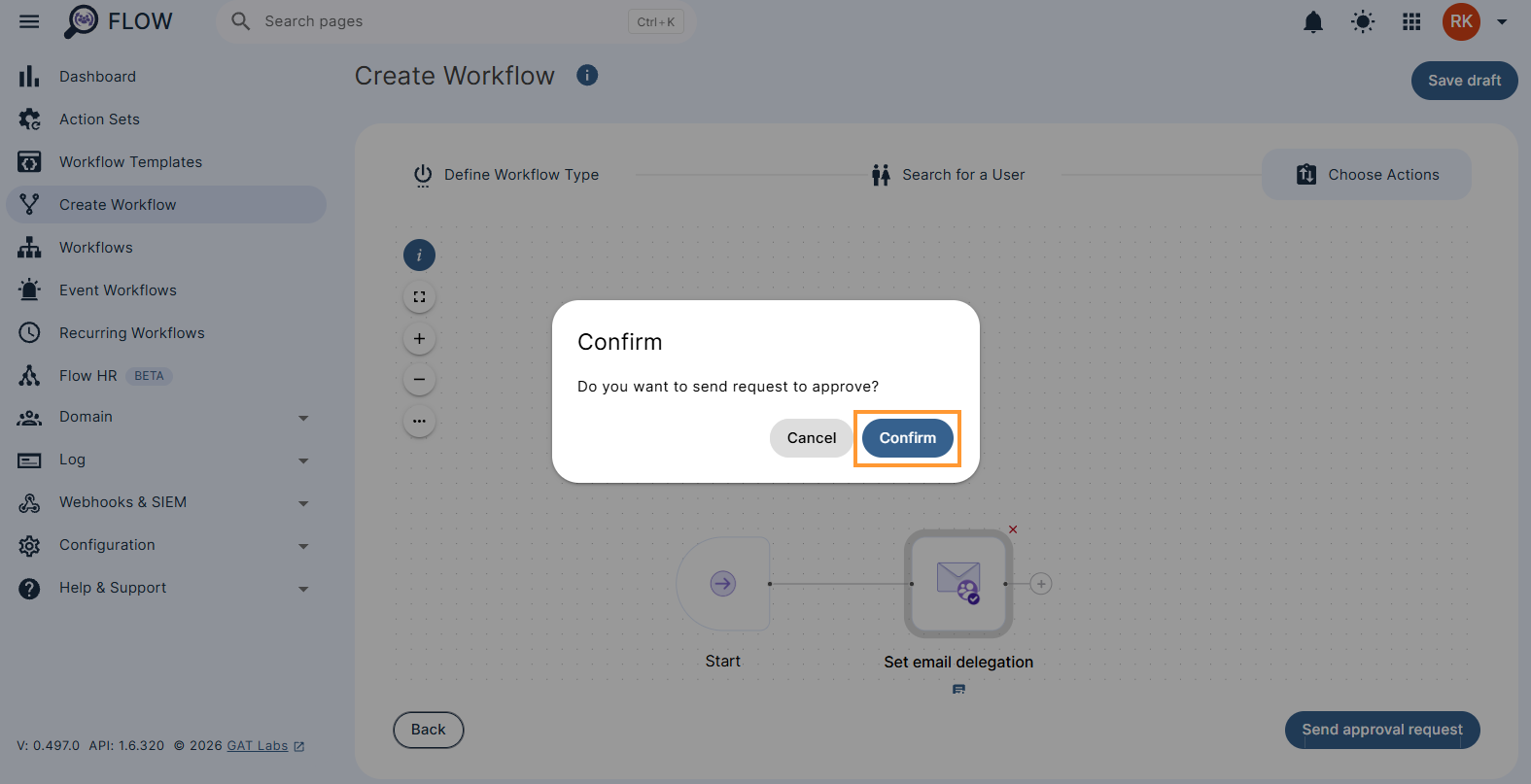
Once confirmed, the request is now sent to the Security Officer for verification, and once approved the job will run.
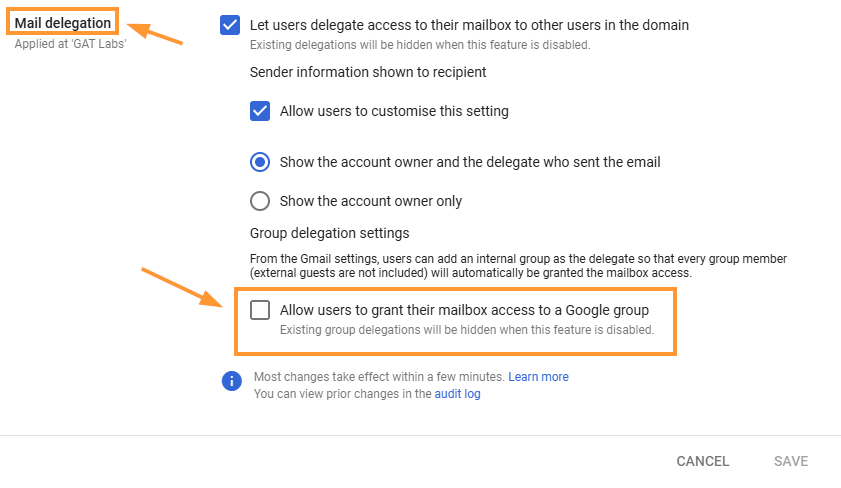
NOTE: To allow email delegation to a group, check the “Allow users to grant their mailbox access to a Google group” box (it may take even a few days).
Security Officer verification #
The Security Officer has to approve the request. They will receive an email that will lead them to the approval page in GAT Flow.
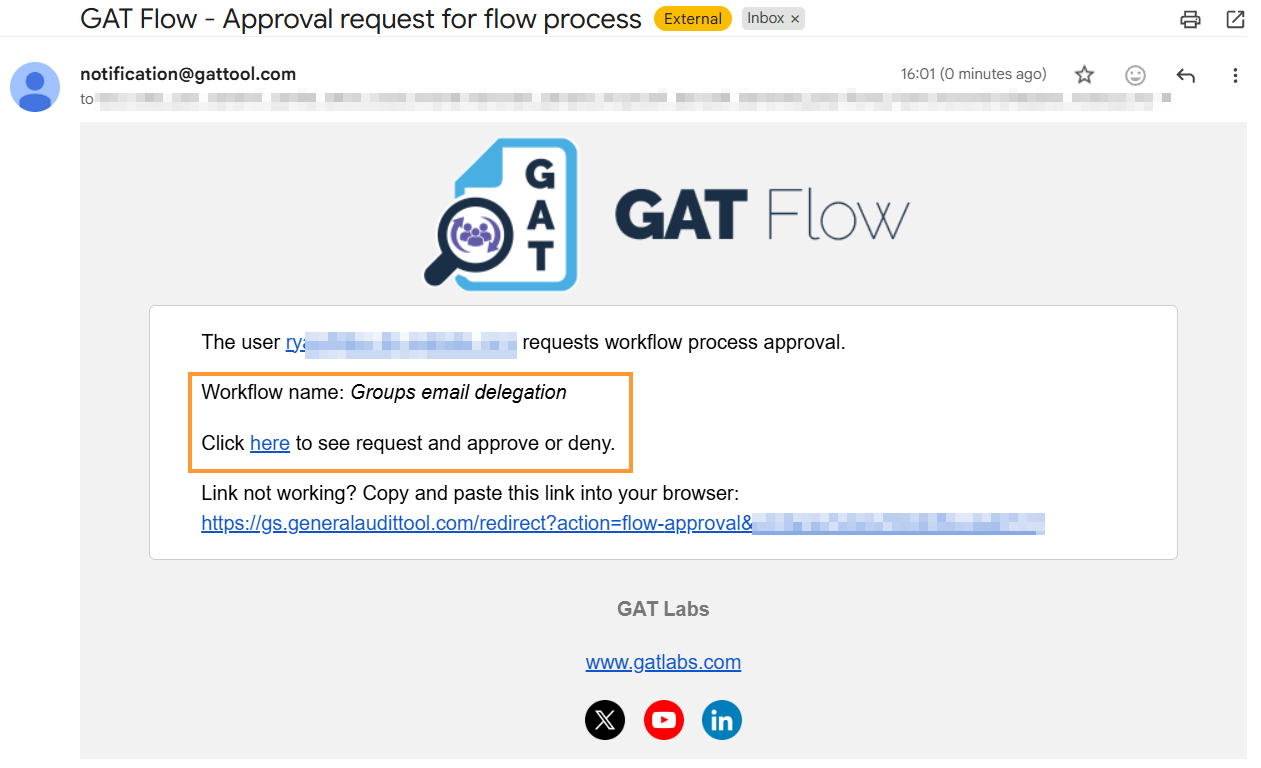
They can review the request by clicking on the link from the email that brings them to the GAT Flow Approval tab in GAT Flow.
Results #
When the action is triggered, email delegation is configured for the given users selected in the workflow. Consequently, the members of the designated Google Groups will now have access to those users’ mailboxes.