
- What is Noticeboard?
- GAT Noticeboard Prerequisites
- Manage Noticeboard Devices and Groups
- Organise Your Digital Signage Screens
- How to Create Scenes in GAT Noticeboard
- How to Create Reels in GAT Noticeboard
- Schedule Content and Set Defaults
- Monitor Digital Signage Playback with Content Reports
- Conclusion
- Frequently Asked Questions
What is Noticeboard? #
Noticeboard turns your managed ChromeOS devices into centrally controlled digital signage right inside GAT+. Set up your devices in Kiosk mode once, then easily design, schedule, and broadcast custom announcements, videos, and dashboards to individual screens or entire buildings, all from a single dashboard.
Note: GAT Noticeboard is currently available in Beta.
GAT Noticeboard Prerequisites #
Before creating and managing digital signage content, you must install GAT Noticeboard on your managed ChromeOS devices and configure them in kiosk mode.
If you haven’t completed this process yet, follow our GAT Noticeboard Installation Guide to deploy the kiosk app, install the companion extension, and configure your devices through the Google Admin console.
Manage Noticeboard Devices and Groups #
Devices #
The Devices tab will show all the enrolled devices where the Kiosks mode is enabled and where the extension is installed.
Groups #
Groups are placeholders where the enrolled devices can be added and used.
To create a new device group, navigate to Devices > Groups > New Device Group
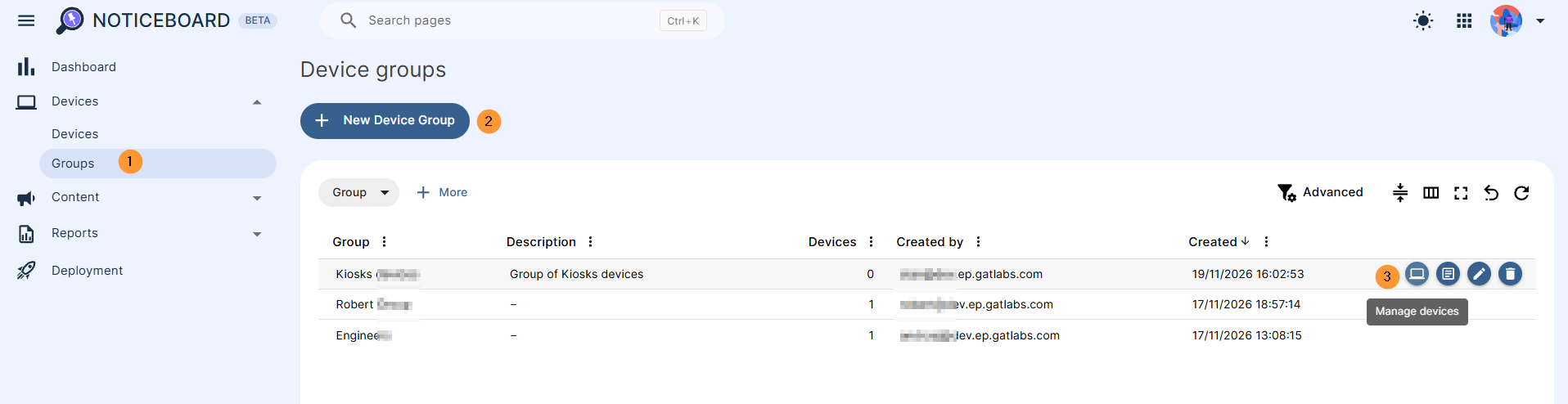
Click and create the group. Hover over the newly created group on the right side click Manage devices (3).
Select the devices and update the group.

These groups are used when assigning Reels to them.
Organise Your Digital Signage Screens #
Once your ChromeOS devices connect, manage them centrally from the Screens section in GAT+.
- Navigate to Noticeboard > Screens to view all enrolled devices along with their live status, device name, location, and admin notes.
- Click on a screen to assign a clear Name, Location, and Notes for easy identification.
- To manage multiple screens at once (for example, all screens in a specific building, floor, or cafeteria), go to Screen Groups and group devices by site, building, floor, or purpose.
How to Create Scenes in GAT Noticeboard #
A Scene is a single screen layout containing your visual content.
Navigate to Noticeboard > Content > Scenes and click Create Scene.

In the New Scene window, fill in the required fields:
- Name – enter the name of the scene
- Scene duration – select the scene duration in seconds
- Description – enter a description of the scene
- Layout – choose a screen layout:
- Full screen (1 panel)
- Split screen (2 panels, side-by-side or top-and-bottom)
- Quad screen (4 panels)
- Appearance – customize the background and text colors to match your organization’s branding, etc.
- Slots – depending on the layout selected, fill in the slots for the layout

- Slot data – for the slots data, you can pick to add Text, Clock, Image, or YouTube video
- Each will give different info to be filled in, such as links, format, scaling, etc
How to Create Reels in GAT Noticeboard #
What is a Reel? #
A Reel groups one or more Scenes into a continuous playlist that loops on screen.
Navigate to Noticeboard > Content > Reels and click New Reel

In the New Reel window, fill in the required fields:
- Name – enter the name for the Reel
- Description – enter a description of the scene
- Scenes – Select the scene you want to use in the Reel.
- New scene – click and create a new scene
- Clone a scene – Pick a scene to copy. The copy belongs to this reel only.
- Reuse scene – Pick a shared scene. Changes to it show in every reel that plays it.
- Create – Click when the scene is created or selected

Synchronised Playback: When multiple screens play the same Reel at the same time, Noticeboard automatically keeps them in sync so scene transitions happen simultaneously across displays.
Schedule Content and Set Defaults #
Control what plays on every screen and when it appears.
Navigate to Noticeboard > Content > Schedules and click New schedule

In the New Reel window, fill in the required fields:
- Reel source – select where the reel source comes from – new reel, clone a reel, or reuse a reel.
- Pick reel – based on the source, pick the reel you want
- Reel – view the reel and update any info if needed
- Booking – schedule the reel, fill in the fields
- Schedule – enter a name
- Device group – select where the reel is to be placed
- When it runs – select to start now or not
- Runs until – select 1 day, 1 week, 2 weeks, 1 month, 3 months, or custom time frame
- Pick an exact day
- Summary – view all the details and click on Create schedule
Monitor Scene Usage #
The usage report will show the details for the scene usage.

Monitor Digital Signage Playback with Content Reports #
Verify what played across your signage network for compliance, auditing, or troubleshooting.
Navigate to Noticeboard > Reports > Content report
Filter by screen, screen group, or date range to view which Reel and Scene played on each device and the exact timestamps.
Playback logs are retained for one year.
Admin can filter
- Search by date time frame: 24 hours, last 7 days, last 14 days, etc.
- Check all scenes or specific ones
- Breakdown stats by reel, scene, device group, or screen.
- Interval – search by day, week, or whole period

Conclusion #
With your screens organized, reels built, and schedules set, your digital signage network runs automatically in the background.
You can return to the Noticeboard tab anytime to swap out content on the fly, adjust schedules, or check playback reports.
Need help setting up your devices first? Check out our Noticeboard Installation Guide or reach out to support if you have questions.
Frequently Asked Questions #
1. What is GAT Noticeboard?
GAT Noticeboard is a digital signage solution for Google Workspace that allows administrators to manage ChromeOS displays, create visual content, schedule announcements, and monitor playback directly from GAT+.
2. What types of content can I display with GAT Noticeboard?
Administrators can display text, clocks, images, and YouTube videos using full-screen, split-screen, or four-panel layouts.
3. What is the difference between a Scene and a Reel in GAT Noticeboard?
A Scene is an individual screen layout containing visual content. A Reel combines one or more Scenes into a continuous playlist that loops on a digital signage screen.
4. Can I manage multiple digital signage screens at once?
Yes. GAT Noticeboard allows administrators to organize ChromeOS devices into groups based on their location, building, floor, or purpose and assign content to those groups.
5. Can I schedule content in advance with GAT Noticeboard?
Yes. Administrators can schedule Reels for specific device groups and define when the content starts and stops playing.
6. How long does GAT Noticeboard retain playback logs?
GAT Noticeboard retains playback logs for one year. Administrators can filter reports by device, device group, Scene, Reel, and date range.


