

Keeping a classroom focused is easier when you can see what is on every student’s screen without walking from desk to desk.
With Teacher Assist, you can monitor student tabs and windows in real time during an active Google Classroom or Teacher Assist session.
Teachers can review student browsing history, close distracting tabs, open educational webpages remotely, and restrict browsing to specific websites to keep students focused on the lesson.
This guide explains how to view and manage student browsing activity directly from your Teacher Assist dashboard.
How to View Open Student Windows and Tabs #
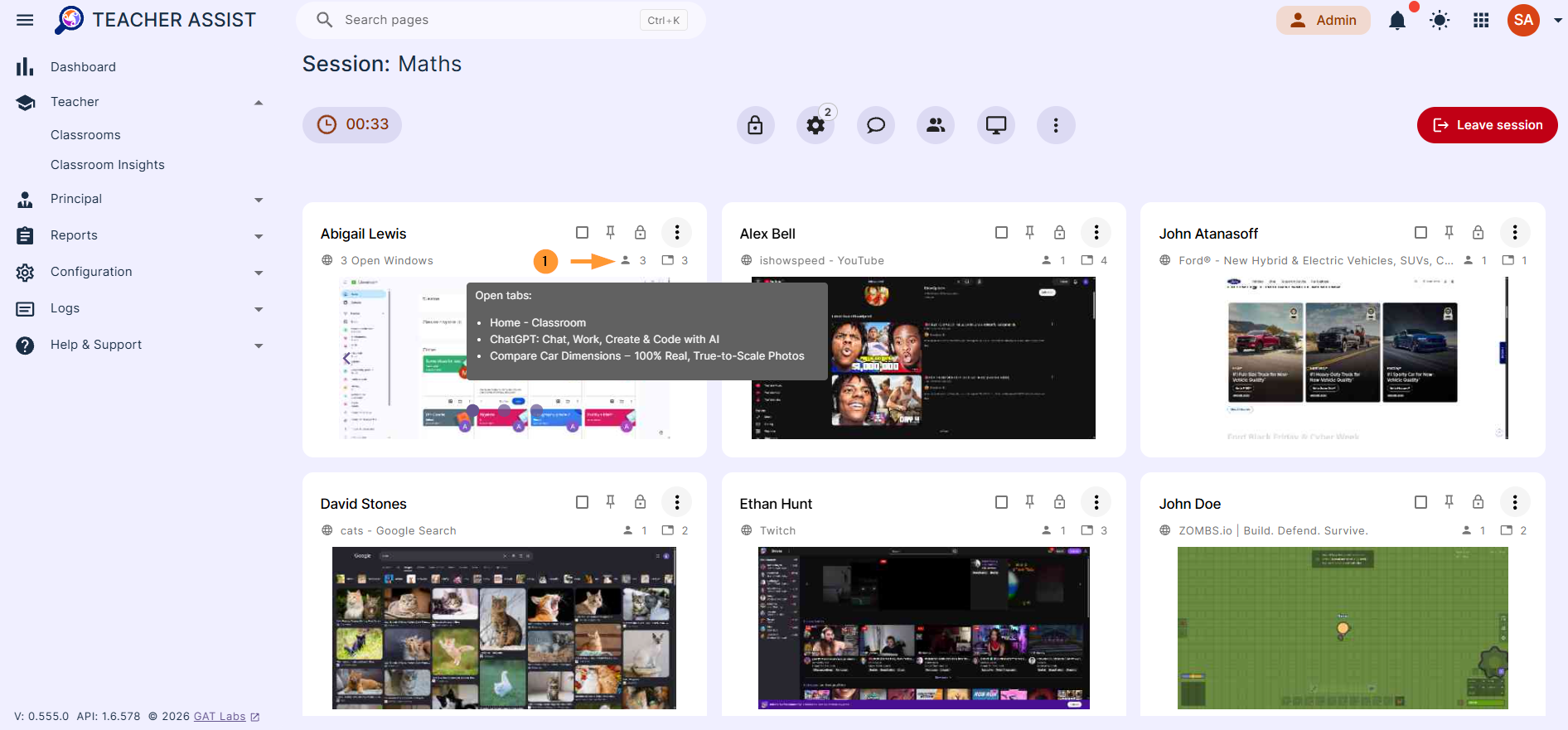
During an active Teacher Assist session, each student card on your dashboard displays a live numerical and visual summary of their current browser activity:
- Opened windows: The total number of browser windows currently open on the student’s device.
- Opened tabs: The total number of active tabs across all open browser windows for that student.
This at-a-glance count makes it easy to spot when a student has multiple extra windows or dozens of distracting tabs open during a lesson.
How to View Student Browsing History #
To review a detailed log of every webpage a student has accessed during the current session:
- Locate the student’s card on your session dashboard.
- Click the three-dots menu (
⋮) on the card. - Select Browsing history.

The session browsing history log displays:
- Page title and domain name for each visited site
- Timestamps showing when each page was opened
- Time spent on each individual webpage

How to Open and Close Student Tabs Remotely #
You can remotely push a specific webpage to a student’s screen, and optionally lock their browser to that resource or close everything else—in just a few clicks:
- Click the three-dots menu (
⋮) on the student’s card. - Select Open new tab.
- In the Open Tab dialog box, enter the URL you want to open in the Enter the website field.

- (Optional) Configure your focus controls before launching the page:
- Lock this tab: Keeps the student anchored to the opened webpage so they cannot close it or navigate away.
- Lock this domain: Restricts browsing exclusively to pages within that website’s domain while blocking external sites.
- Close all other tabs: Automatically closes all other open windows and tabs on the student’s device so only your selected webpage remains visible.
- Click Open to apply the changes immediately.

By combining real-time tab monitoring with remote tab controls, you can eliminate off-task browsing in seconds and keep your class moving together. Ready to take classroom management even further? Explore the related guides below to learn how to apply bulk actions across your entire class or lock student screens during exams.
Related posts #
- Take Action on Students’ Browsing Tabs in Classroom Session with Teacher Assist
- How to reset all tabs viewed by the student during the classroom session in Teacher Assist
- Monitor blocked or allowed URL’s during class with Teacher Assist’s Site Control History
- How to lock student screens for exams with Teacher Assist
Frequently Asked Questions #
- Q: Can I open a webpage or close distracting tabs for the entire class at once?
- A: Yes. While the three-dots menu on a student card lets you manage tabs for an individual student, you can use the Session Tools button at the top of your session dashboard to push webpages, lock tabs, or close extra windows in bulk across all active students.
- Q: What is the difference between “Lock this tab” and “Lock this domain”?
- A: Lock this tab prevents the student from closing or navigating away from that single URL. Lock this domain allows the student to click links and navigate freely within that specific website (for example, anywhere on
khanacademy.org), while blocking access to all external domains. - Q: Does Browsing History show websites a student visited before class started?
- A: No. To respect student privacy outside of class hours, the Browsing History log only records pages visited, timestamps, and time spent during your active Teacher Assist session. The “before” history can be found in Classroom insights for specific days.
- Q: Will closing all other tabs delete a student’s unsaved work?
- A: Selecting Close all other tabs immediately closes every open window and tab on the student’s browser except the new page you are pushing. If students are working in web apps that do not auto-save, give them a quick verbal heads-up before triggering a tab reset.
- Q: Can I save a visual record of a student’s off-task tabs for administrative or parent review?
- A: Yes. In addition to viewing live tab counts and session history logs, you can capture a timestamped screenshot of a student’s active screen at any time. Learn more in Take a Screenshot of a Student’s Current Browsing Activity During a Class via Teacher Assist.


