

Create, Modify, or Delete a Single User’s Profile in GAT Flow #
GAT Flow allows Google Workspace Admins to take actions on the users on their domain in bulk.
The administrator of a domain can use the Users module within the tool to create a new user, modify the existing user’s profile details, and delete a user’s account.
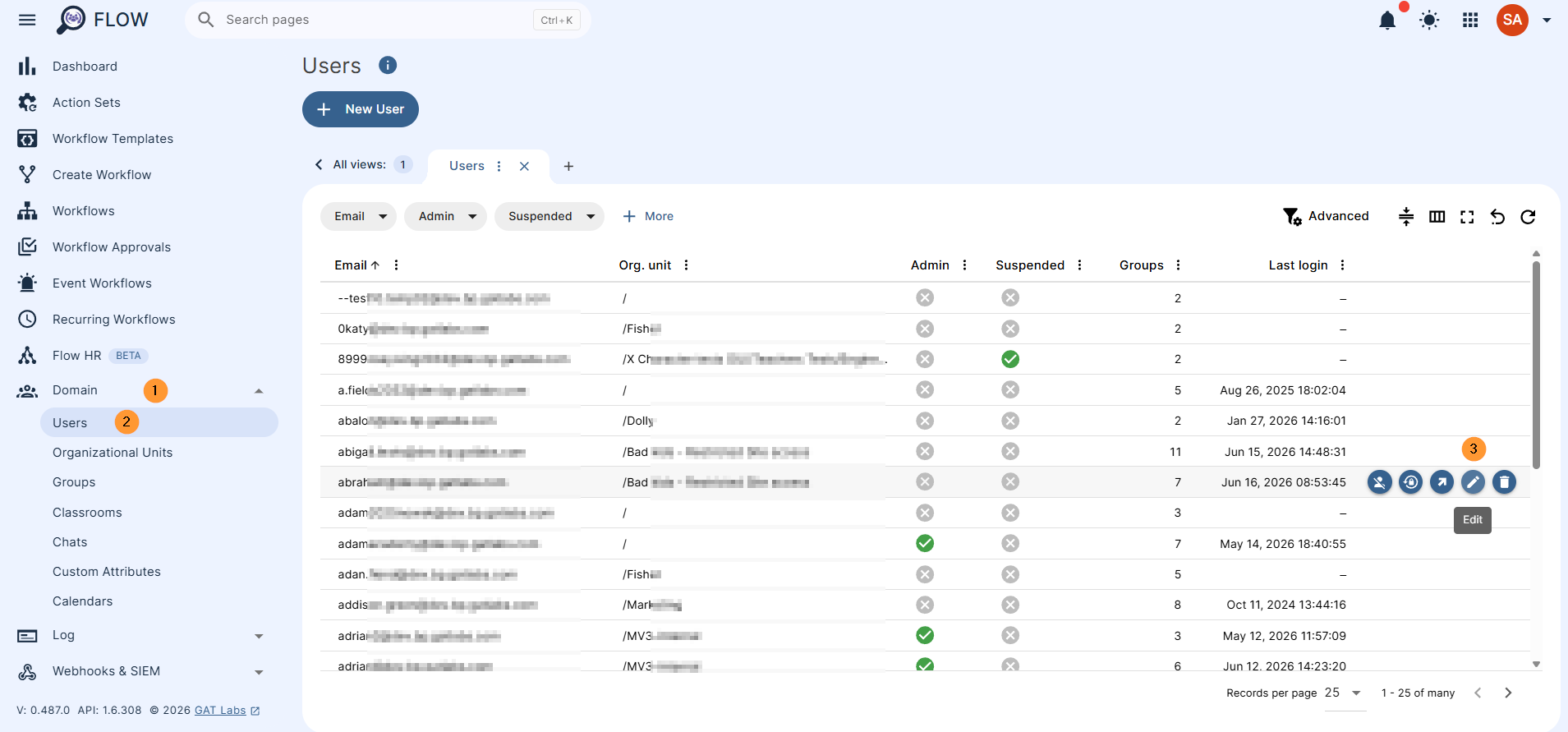
Navigate to GAT Flow > Domain > Users
In the Users tab:
- + New user – use to create a new user
- Search for any user by using the filters for Email, Admin, + More
- Hover over the user – on the right side, additional buttons will be displayed (3)
- Suspended/Unsuspend user
- Change password
- Extract email addresses
- Edit user
- Delete user
+ New user #
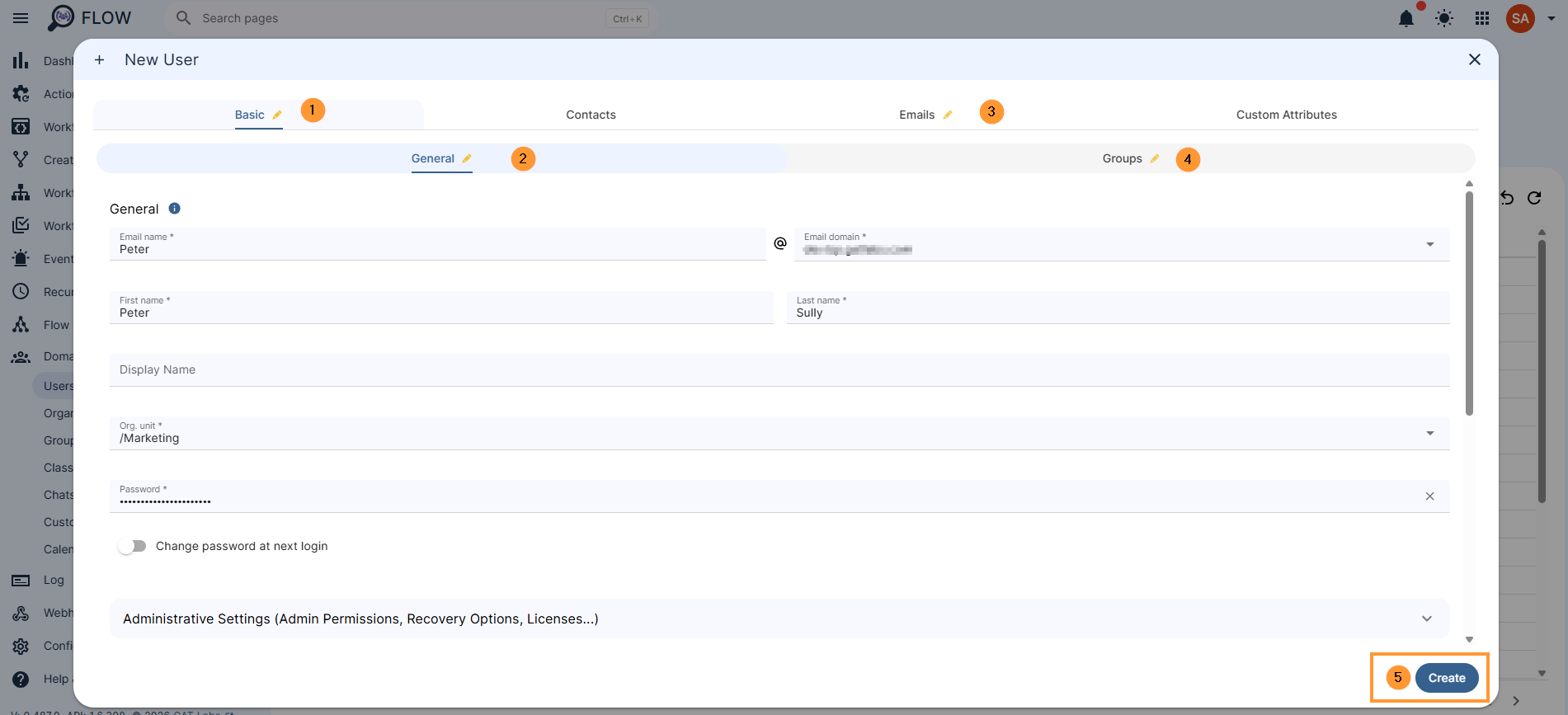
An Admin can create a user’s profile and set up all details for the accounts. The fields with * are mandatory.
- Basic
- General: In this tab, you can edit general user information such as password, email, first name, last name, and much more.
- Email name – mandatory
- Email domain – select domain
- First name – mandatory
- Last name – mandatory
- Organizational Unit – mandatory
- Password
- Set up the user’s Password – mandatory
- Change password at next login – optional
- Set up the user’s Password – mandatory
- Administrative Settings (Admin Permissions, Recovery Options, Licenses…)
- Admin
- Suspended
- Show in the global directory
- Private email
- Recovery phone
- The phone number must be in the E.164 format, starting with the plus sign (+). Example: +16506661212.
- Recovery email
- Licences
- The ‘Refresh data’ button doesn’t update the list of licences. They are updated once a day.
- Employee information
- Employee information
- Organization name
- Job title
- Employee type
- Department
- Cost center
- Building ID
- Area
- Floor name
- Floor section
- Gender
- Address me as
- Gender type
- Groups – Add the user you are creating to a group and select what Member role will be.
- General: In this tab, you can edit general user information such as password, email, first name, last name, and much more.
- Contacts
- Phones
- Home
- Work
- Mobile
- etc.
- Addresses
- Home
- Work
- Other
- Relations
- Admin Assistant
- Assistant
- Brother
- Child
- etc
- External IDs
- Account
- Custom
- Customer
- Network
- Organization
- etc.
- Phones
- Email
-
- Aliases – add or remove email aliases
- Delegation – add or remove email delegation
- Signature – Send as:
- Add Send as email addresses
- Set up Send as email signature
- Filters – add or remove email filters
-
- Custom attributes – update the user’s Custom attributes
When the user is created along with all its details, click on the Create button.
The user will be created.
Modify existing user #
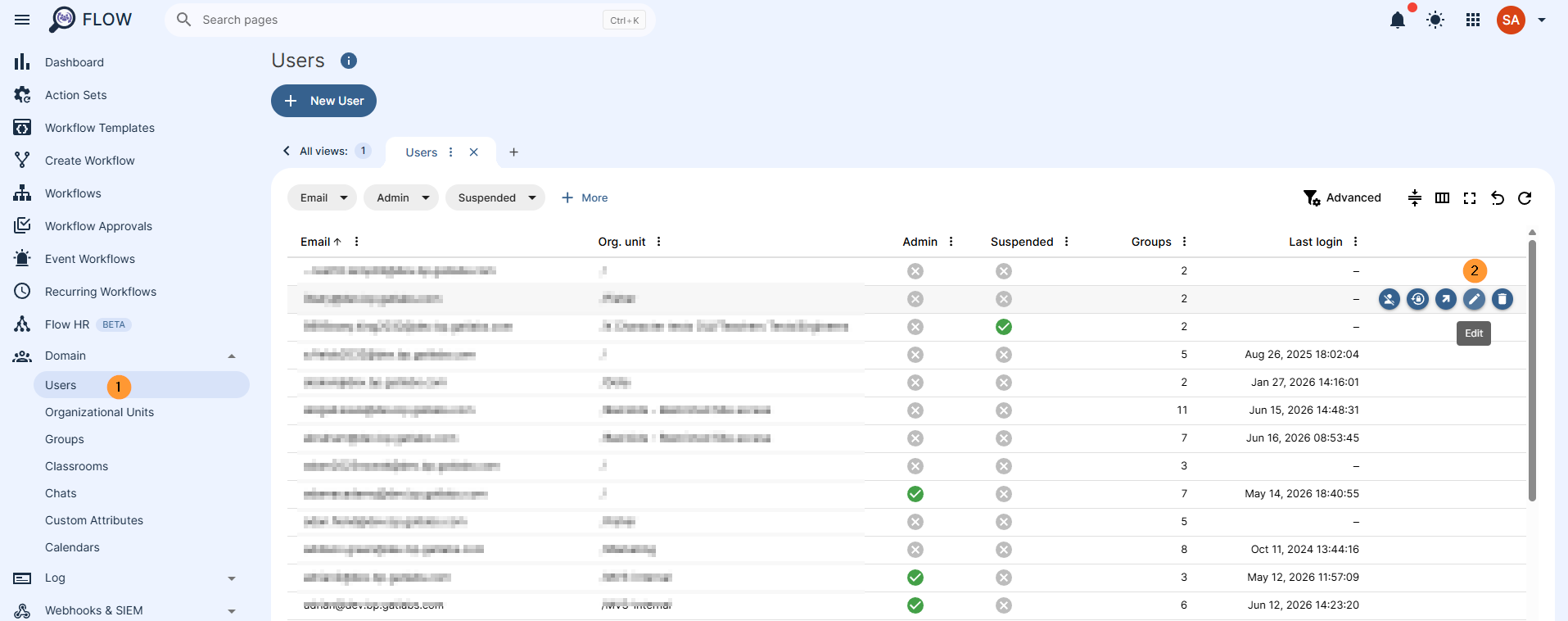
An Admin can simply edit the details of a single user’s profile by searching for the user in question and modifying the details in their profile by clicking the pencil icon (2)
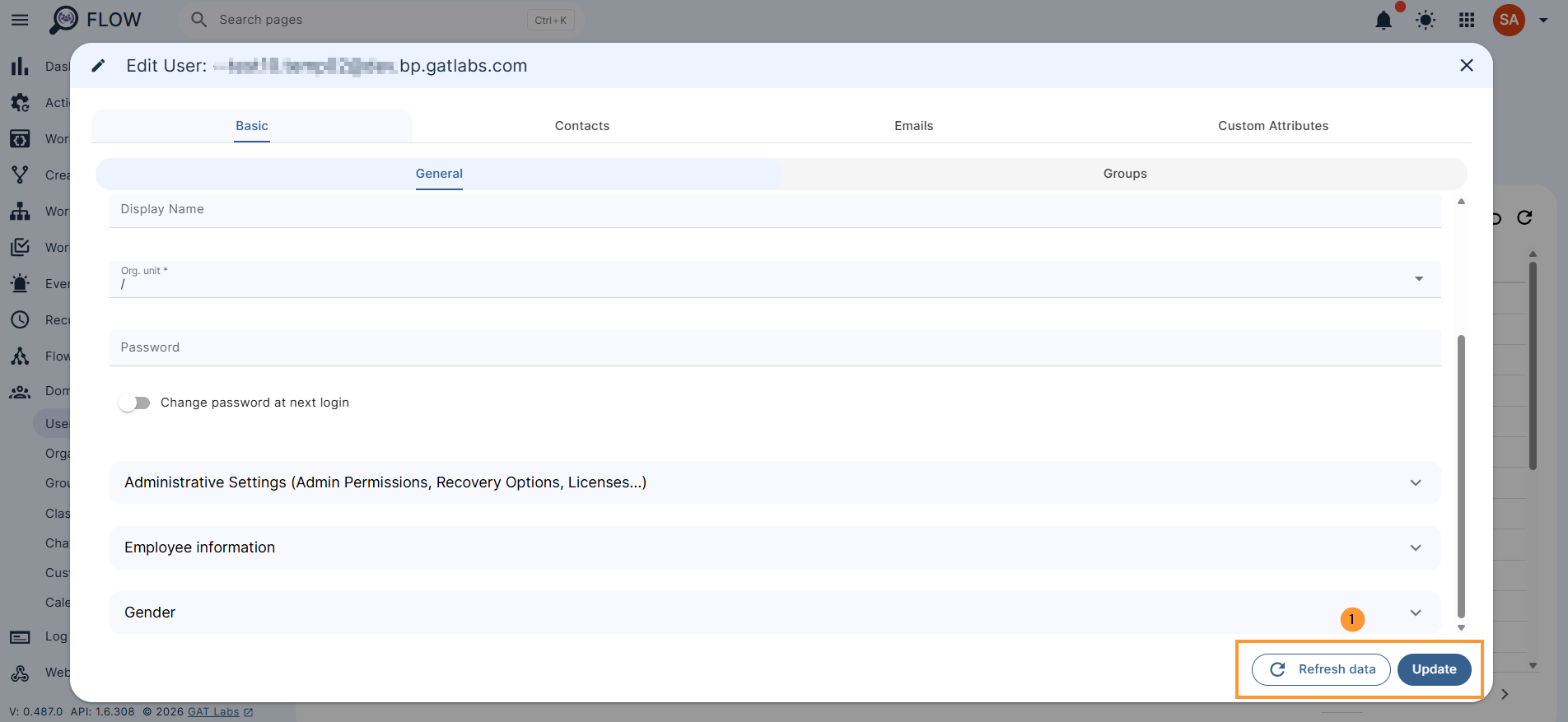
When the necessary details are amended, click on the Update button to complete the process.
Refresh user data #
There is an option to “Refresh data” (scan now) as well.
This will sync the account with the Google Admin console, and the data will be refreshed.
Summary #
The Users tab in GAT Flow is designated for Administrators of the domain to be used as an alternative option for creating, editing, or deleting users of the domain.


