

GAT Flow offers Google Workspace Admins the ability to easily automate user management processes. It also helps them to remove sharing permissions of users’ Google calendars. The action allows the removal of all types of existing sharing permissions at once. The admins can take this action on any number of users, groups, OU, or classrooms.
Step 1. Create Workflow #
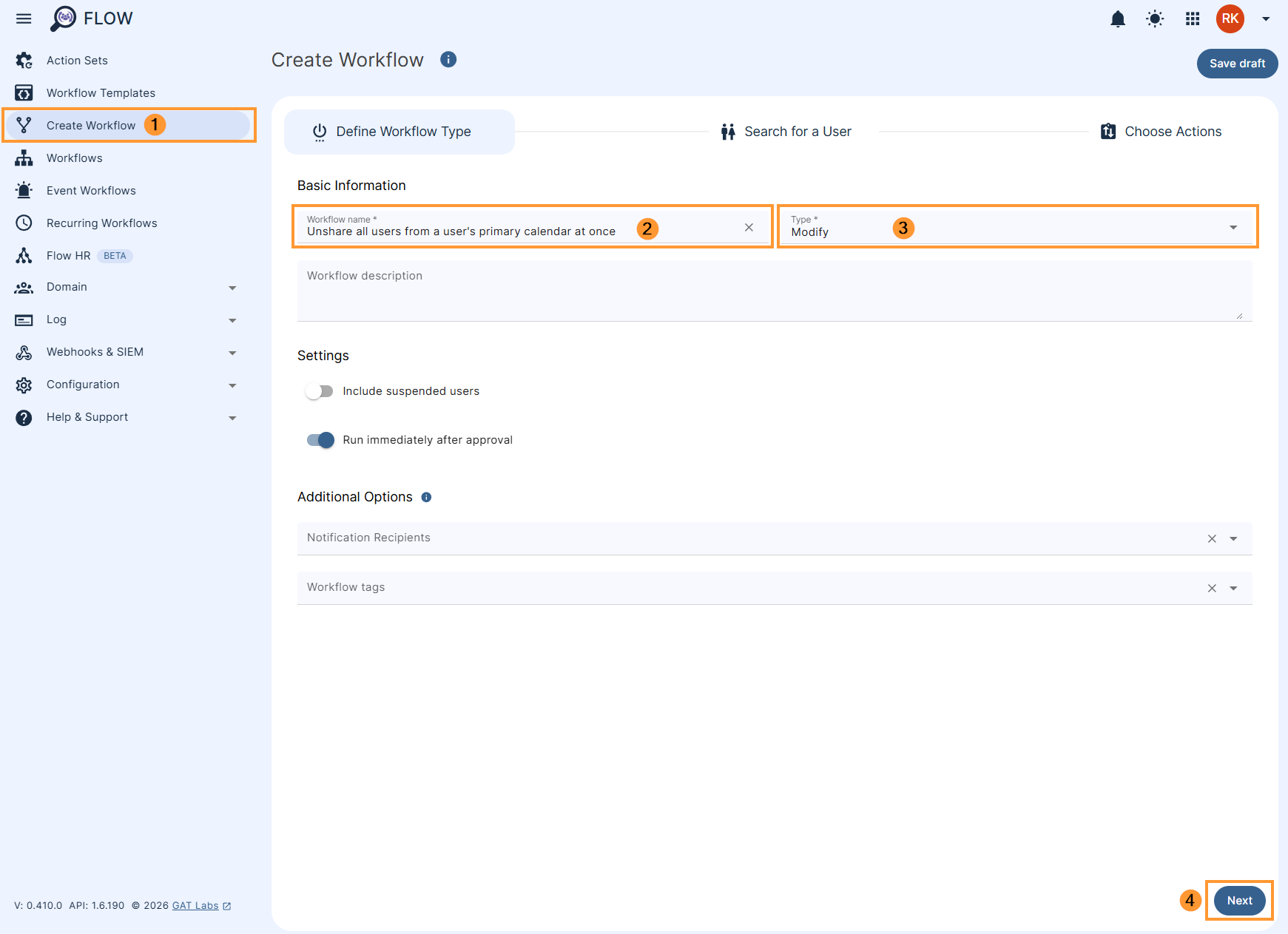
To remove the Google calendar sharing permissions given by User(s), navigate to GAT Flow > Create workflow (1)
- Name – enter the name of the workflow (2)
- Description – enter a description for the workflow (optional)
- Type – select what workflow type you would like to run
- Modify – modify existing users (3)
- Include suspended users – enable or disable to allow you to select users who are currently suspended:
- If enabled – you will be able to select even users who are suspended
- If disabled – you will be able to select only users who are active
- Run immediately after approval – provides an option to schedule the workflow to run in a selected future time (optional)
Later click Next (4) to proceed.
Step 2. Select User(s) #
In the next section Search for a user, and select the user’s accounts for which you wish to remove Google calendar sharing permissions given to other users.
You can select users in the following ways –
- to select individual users, click Search for a user
- to select groups, click Search for a group
- to select the whole OU that those users belong to, click Search for an OU
- to select the existing Classroom that the users/students are assigned to, click Search for a classroom
- to import users from a spreadsheet, select Import users
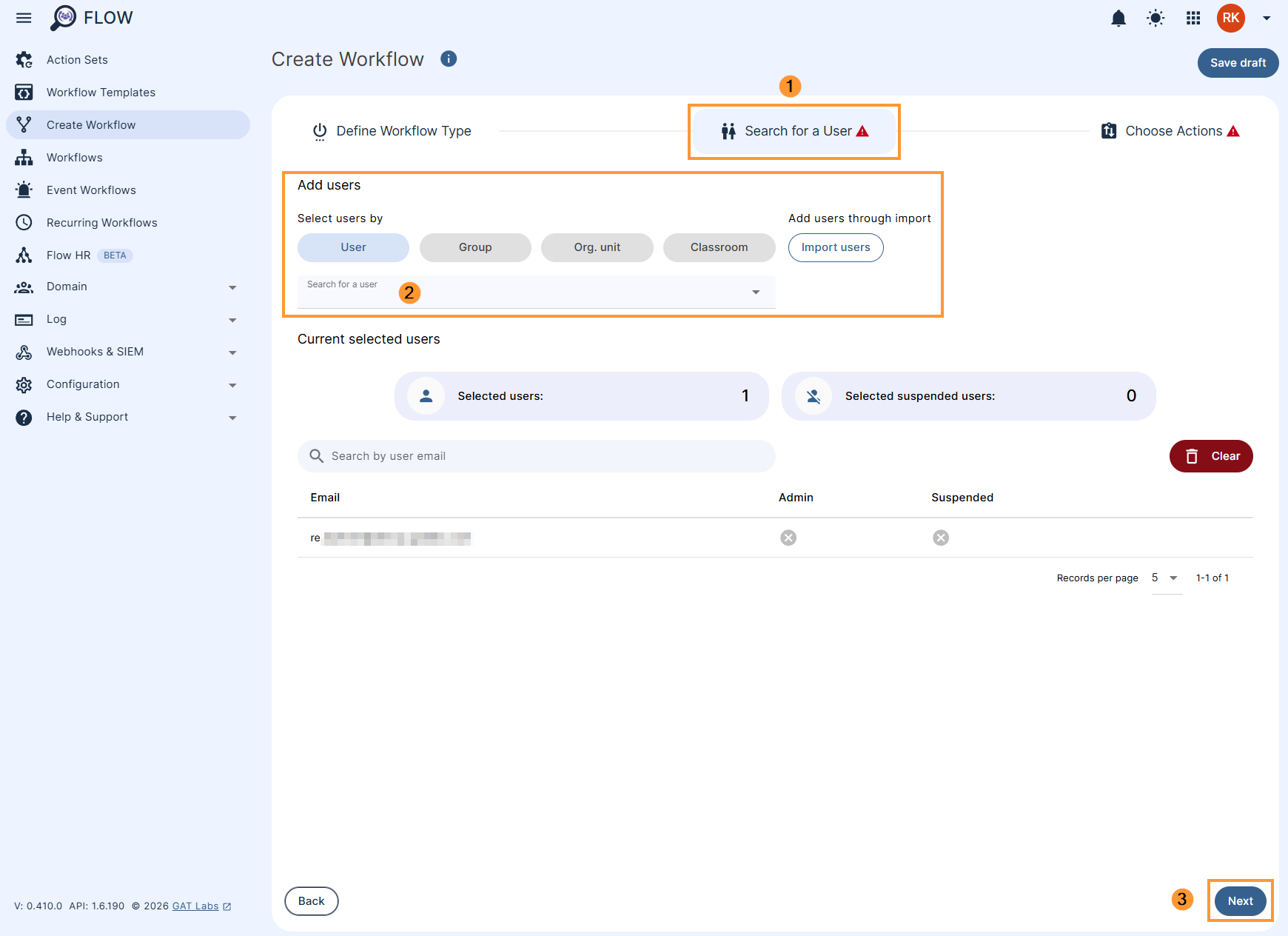
After selecting user(s), click the Next button located at the bottom of the panel.
Step 3. Select Action #
In the next section Choose actions click on the (+) button (1) and then click the Add action button (2)
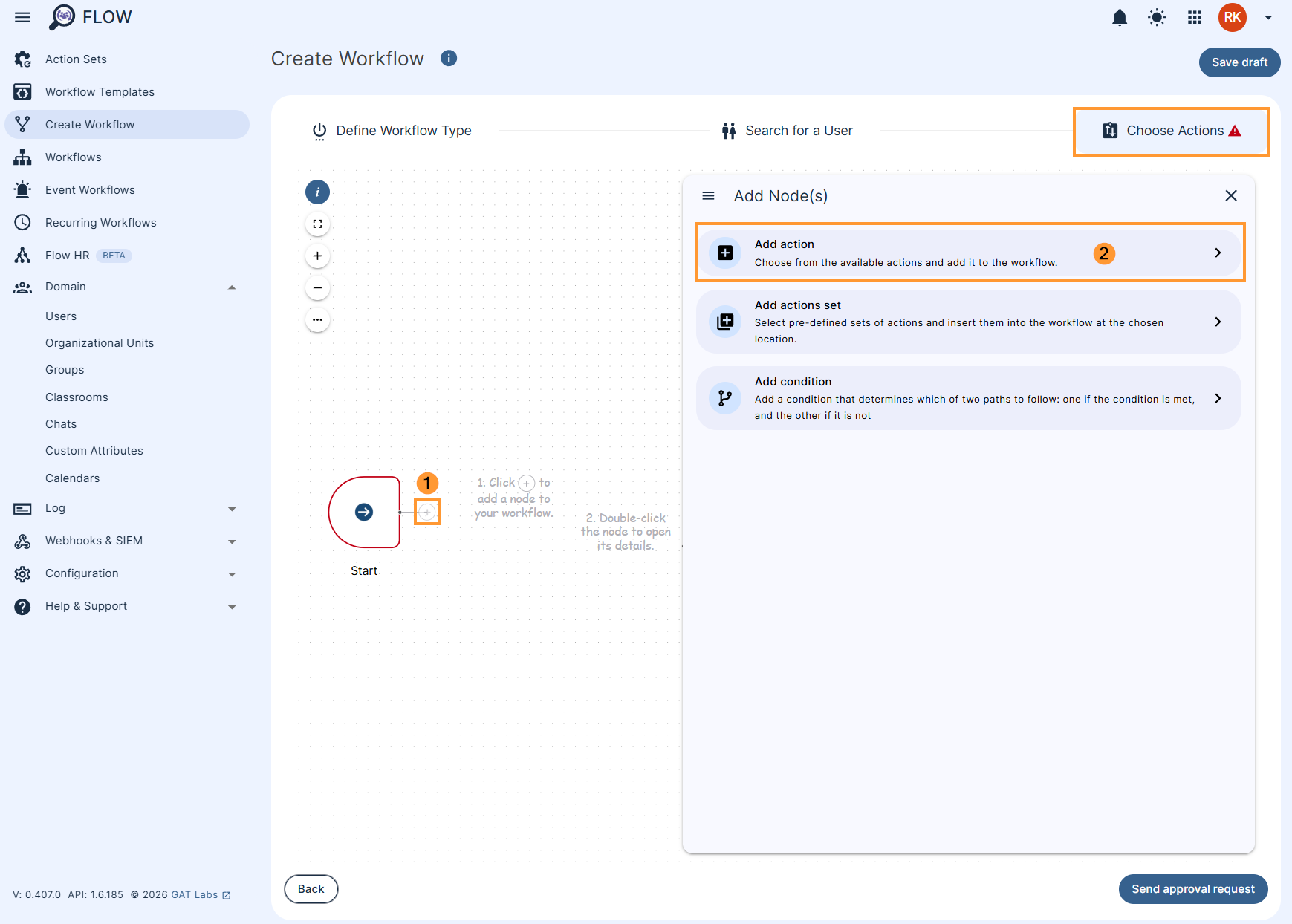
Select the action Unshare user calendar found under the Calendar section and add it to the workflow.
For easy accessibility, use the search bar and type the word ‘calendar’:
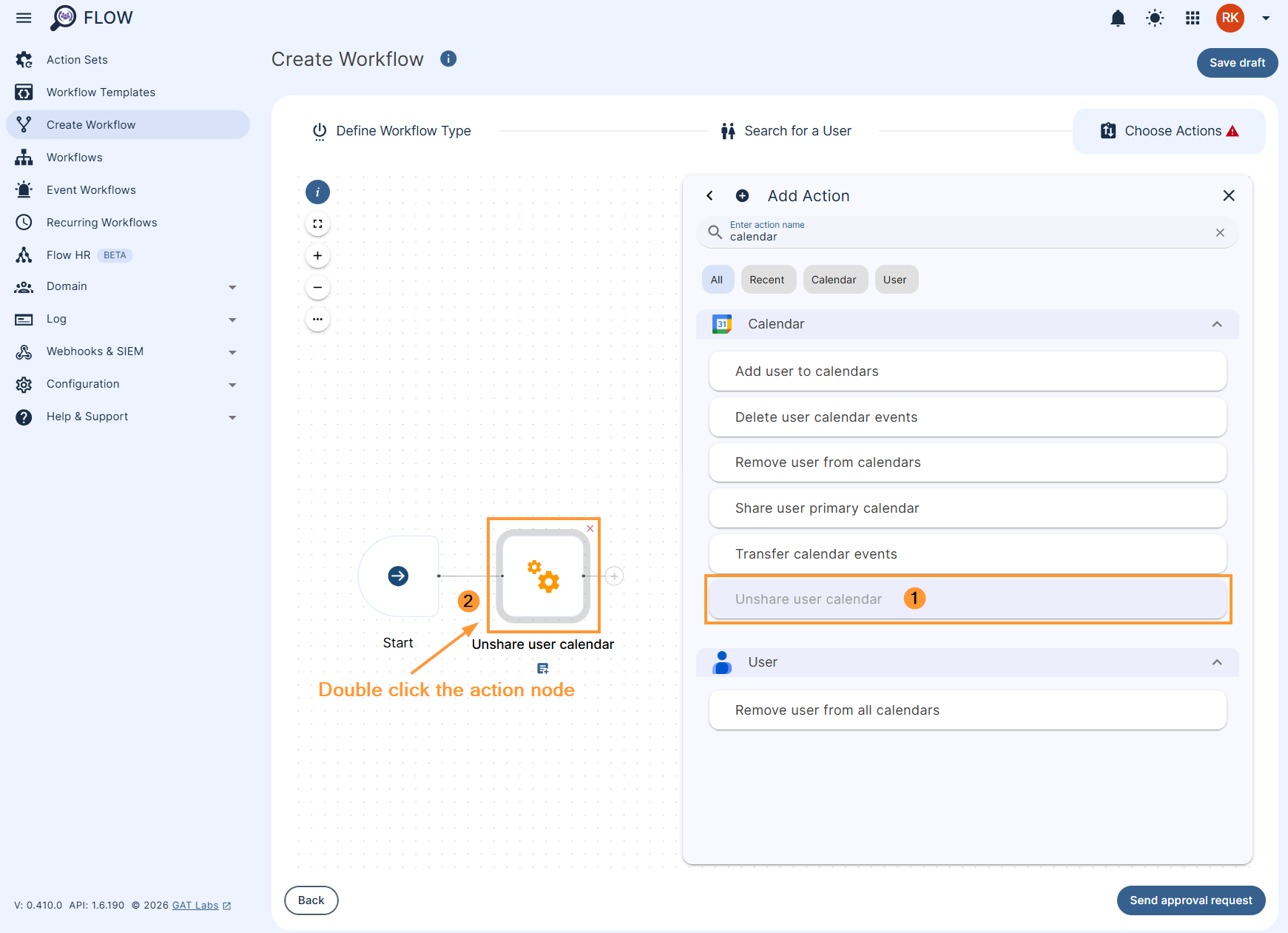
Double click the Unshare user calendar action node to configure the settings.
Unshare all #
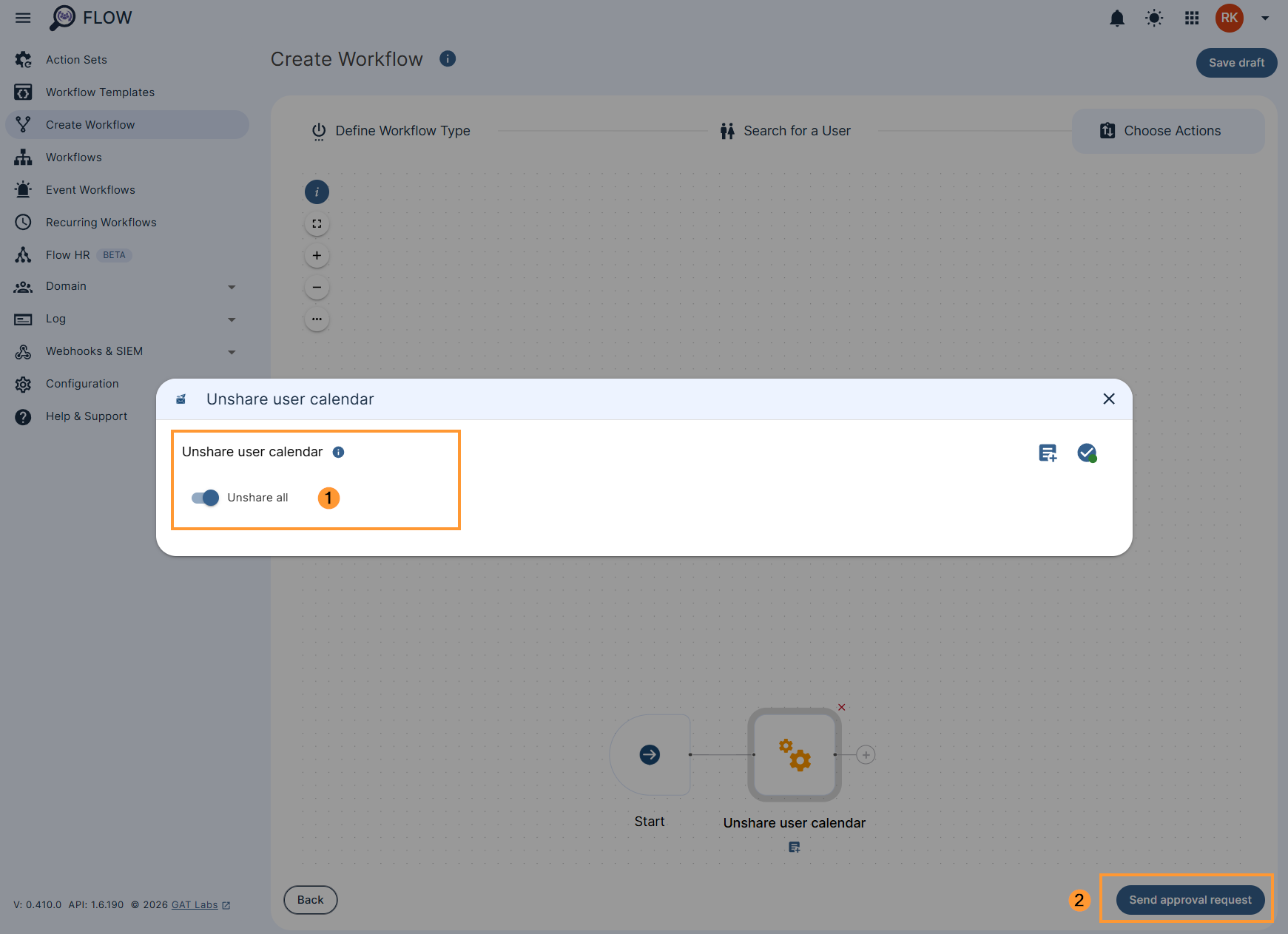
NOTE: This action will remove all users from a workflow user’s primary calendar. Selected user’s primary calendars will be removed from their list of calendars.
By selecting this action, you will trigger the removal of all sharing permission of a domain user’s Google calendar. As a result, the selected user’s primary calendar will be removed from the other users’ calendars.
Addresses to unshare #
If you wish to specify a particular user(s) to unshare the calendar from, deselect the Unshare all option and select Addresses to unshare, then select the addresses from the drop-down menu or start typing them manually.
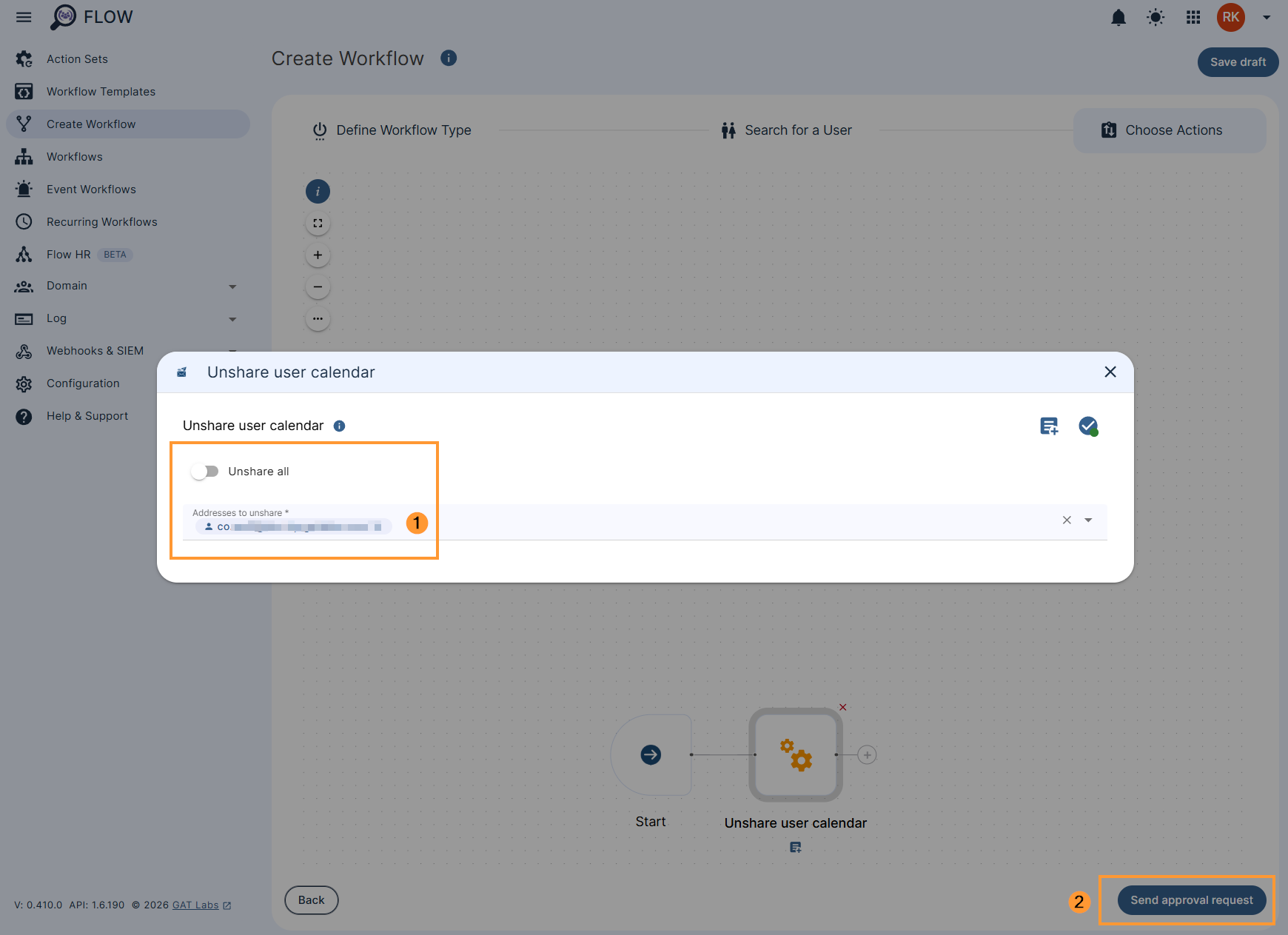
Once ready, click on Send approval request button.
When the pop-up confirmation window appears, select Confirm to confirm the action.
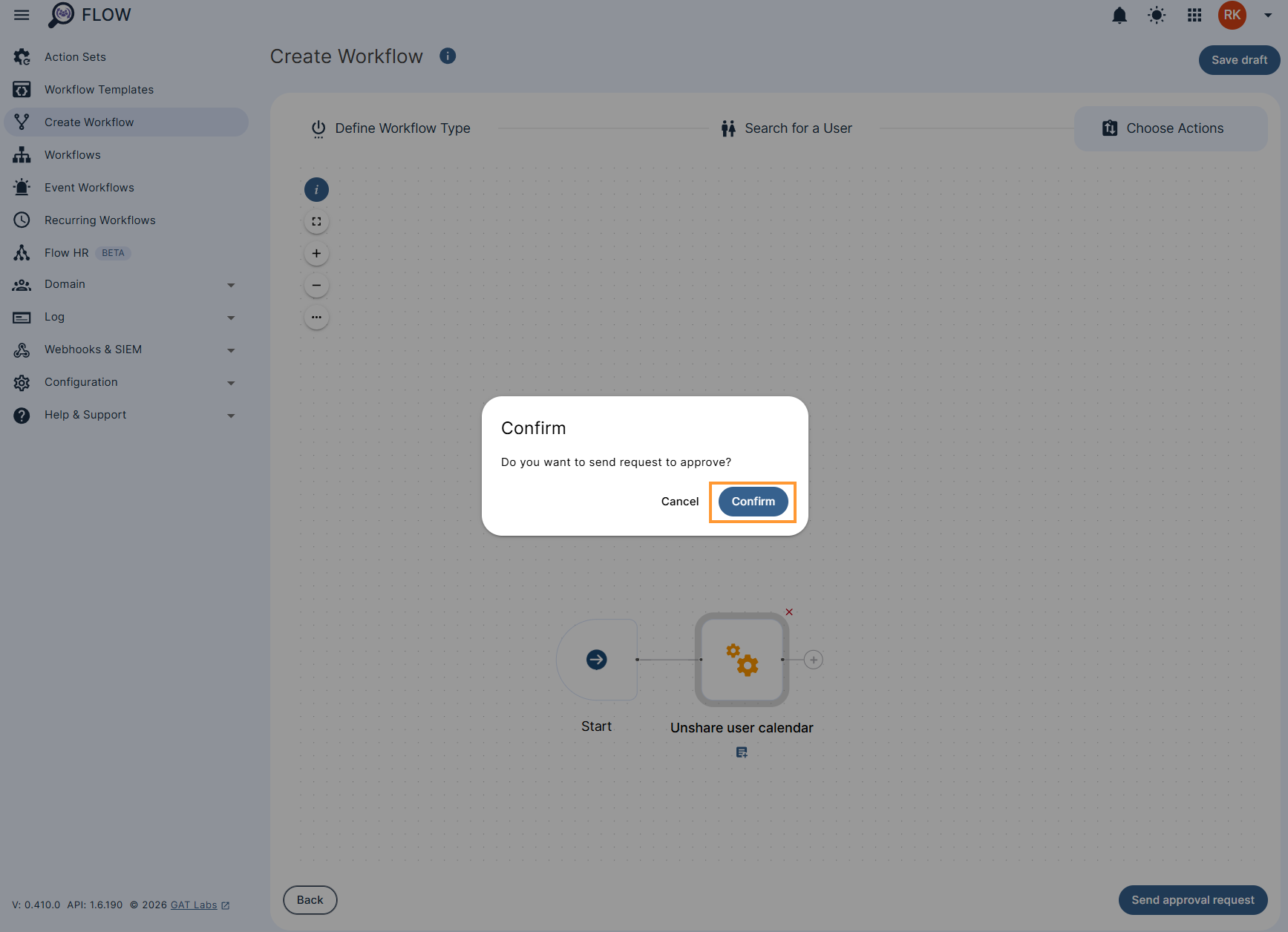
Your request is being sent for review to the Security Officer.
Your workflow can be reviewed anytime under the Workflow section in GAT Flow. Click on the ‘page’ icon visible on the right side as shown below to see more details:
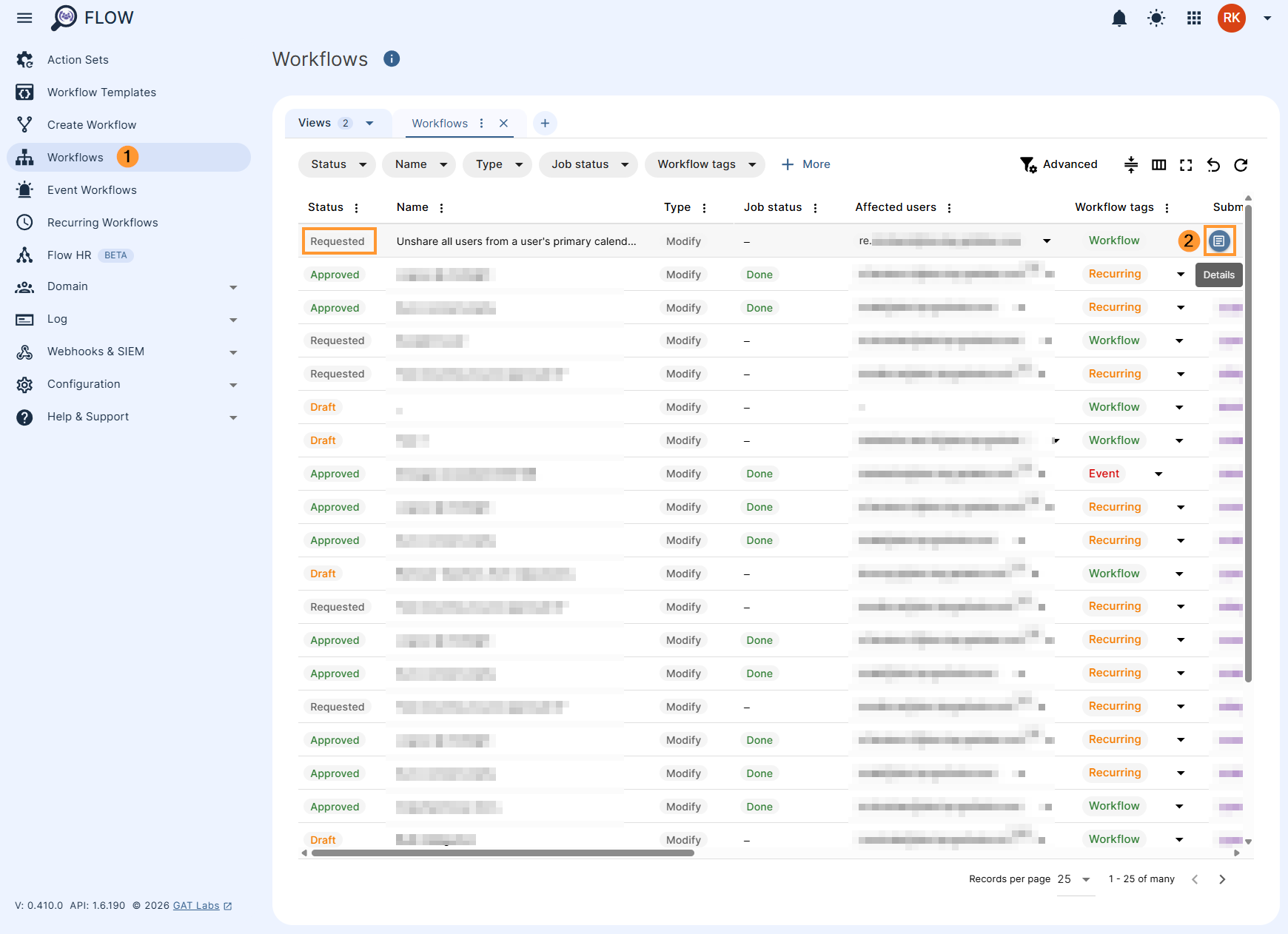
Step 4. Security Officer Approval #
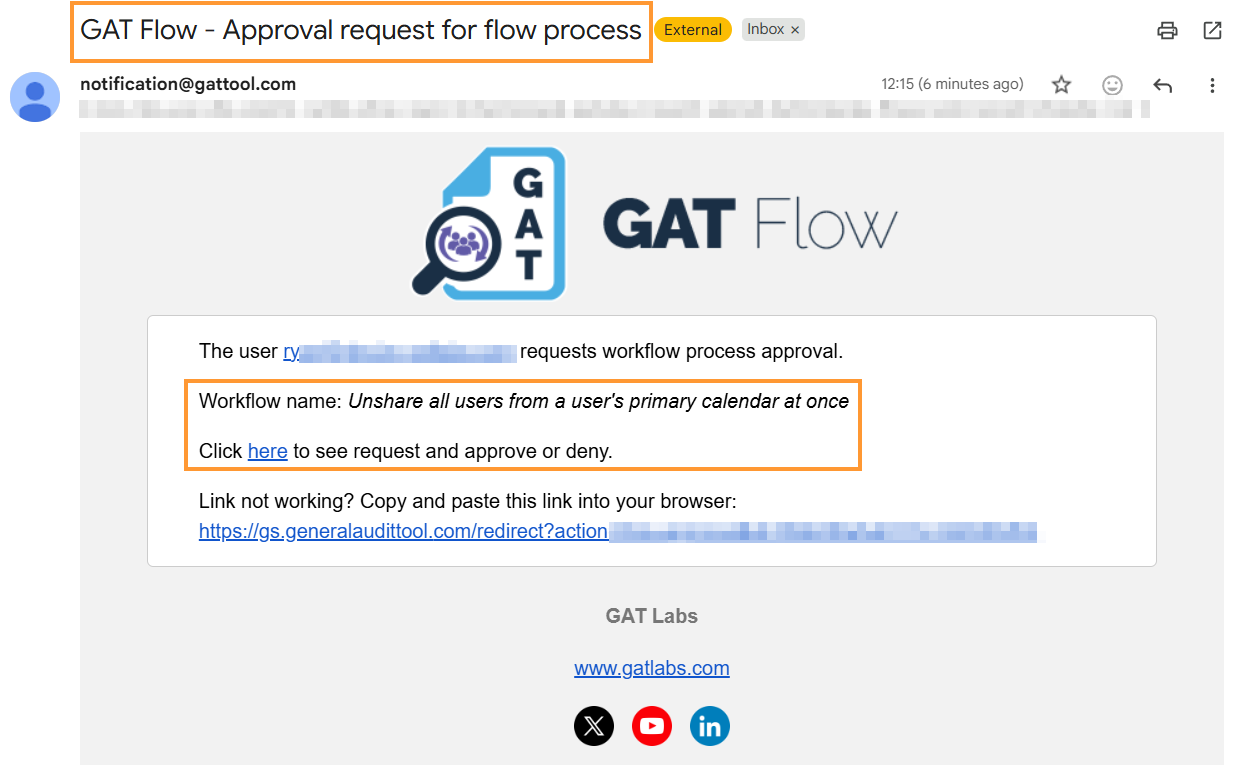
The Security Officer automatically receives the request and can review it to approve or deny it.
Step 5. Review the Result #
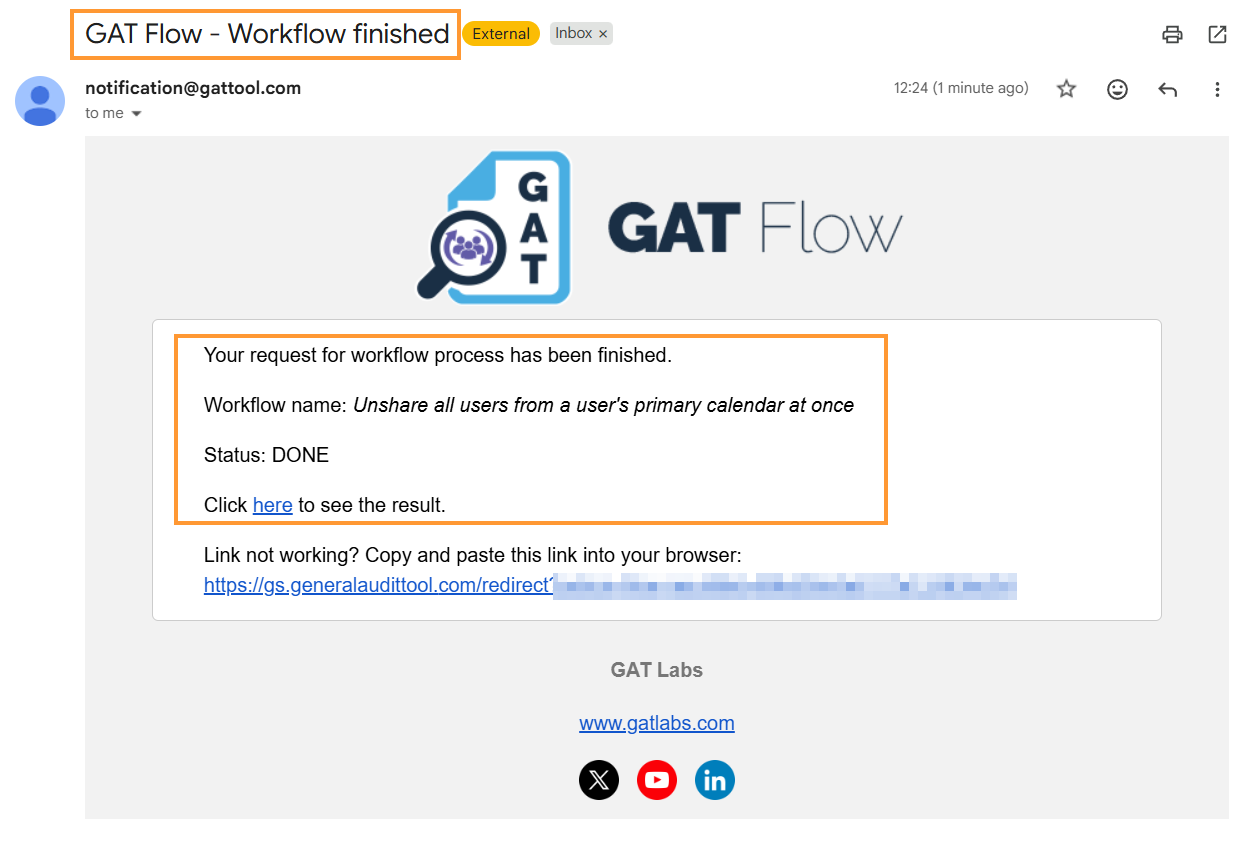
Once the workflow is approved and executed, the workflow creator receives a notification email that the process has been finished.
The workflow creator can check the status of the job at any time under the Workflow section in GAT Flow.
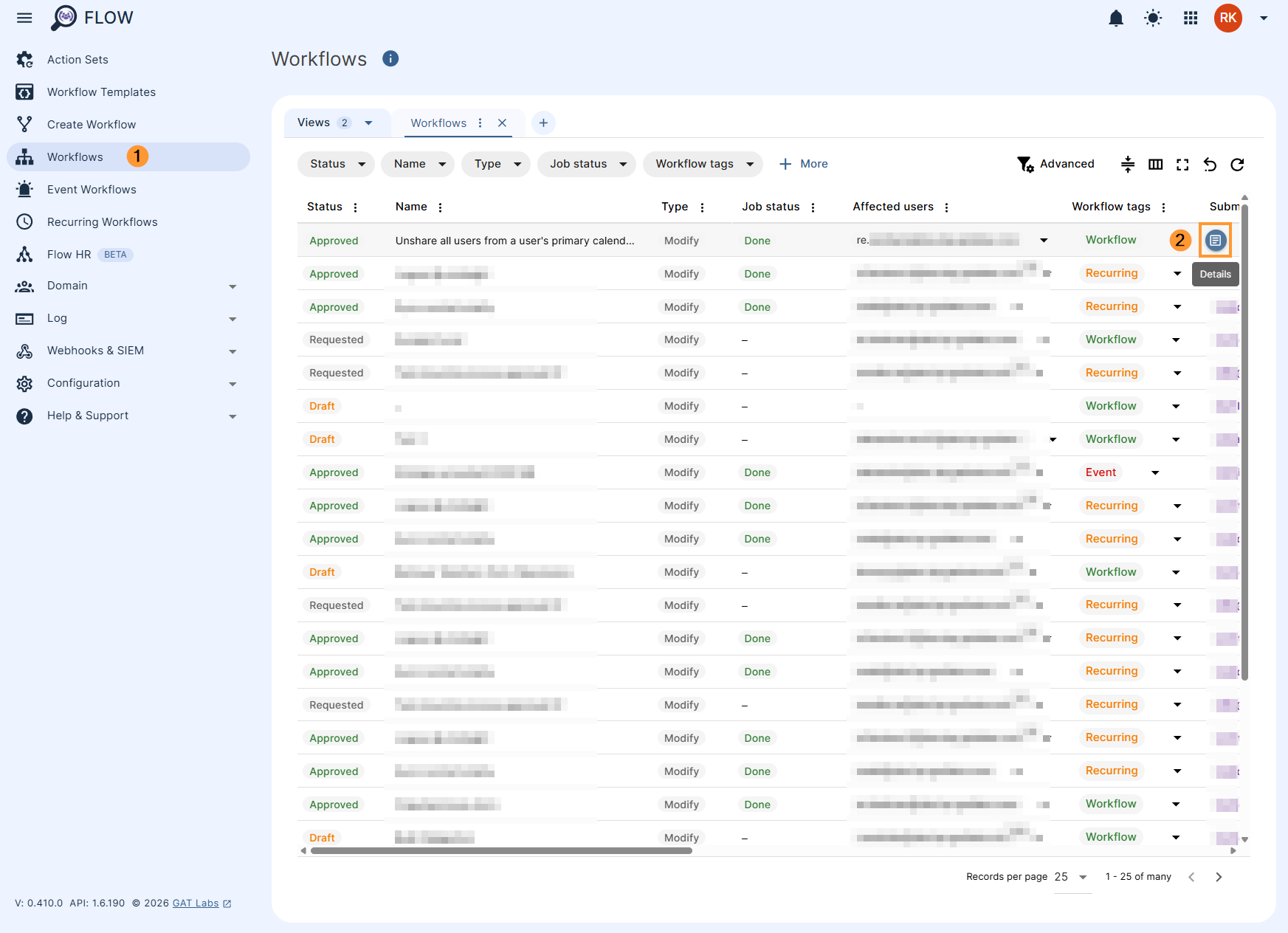
Once the status shows Approved and Done, the sharing permissions of users’ primary calendars are removed from other users’ calendars.


